
The index report is available to all users on the Main Deal Team with the Report Manager role.
The Index report provides comprehensive insights into all user and team actions and activities across all index items. To access the Index report, follow the steps below.
-
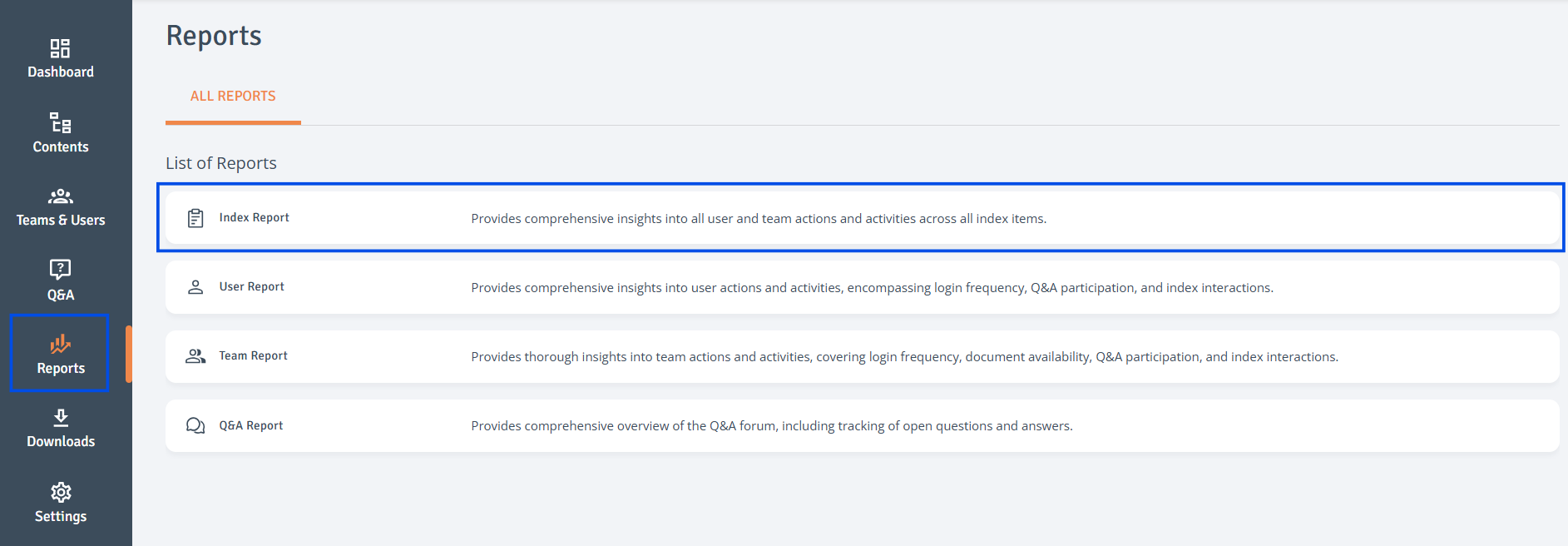
Go to Reports: Access the Reports page from the left-hand navigation bar.
-
Select Report: Click on ‘Index Report’ to open it.
-
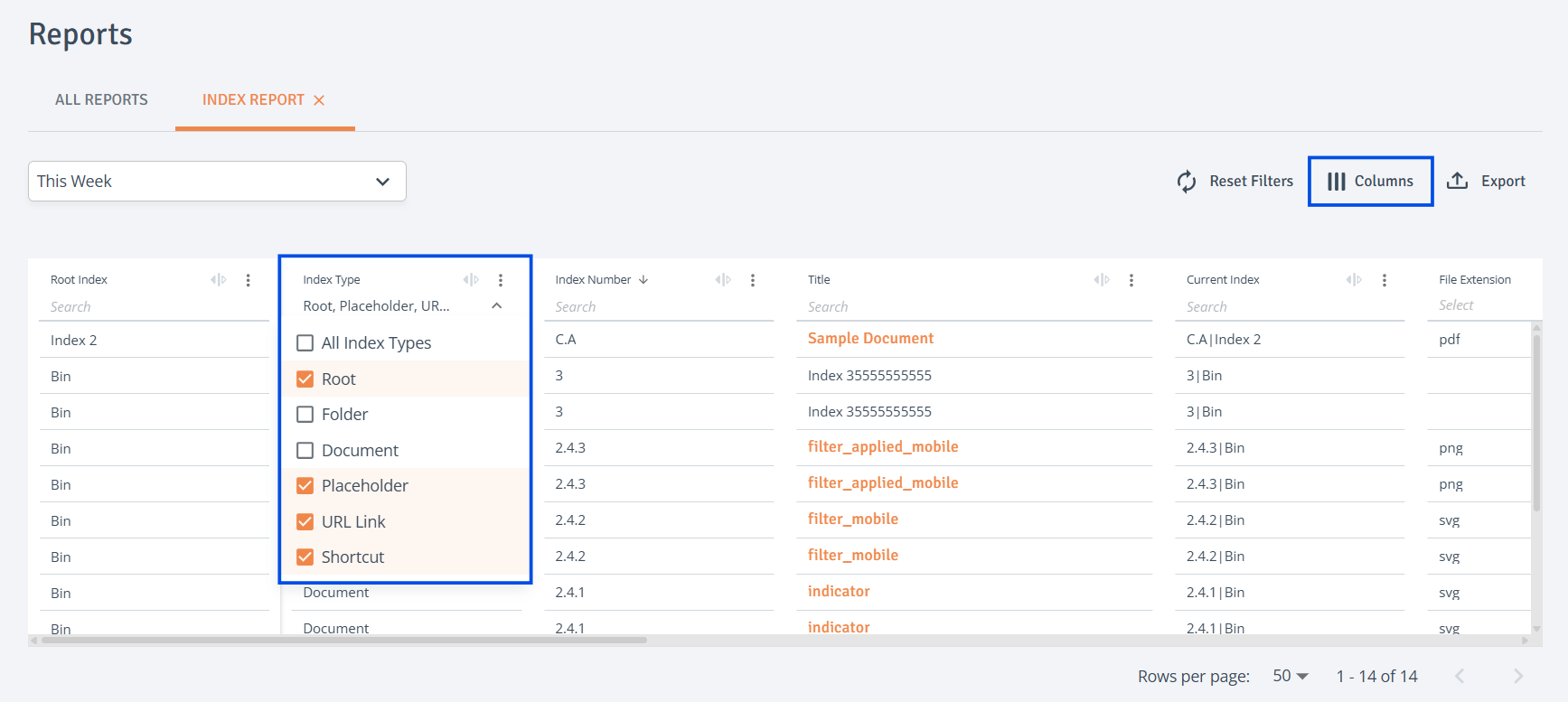
Customise Report: Use the top-left dropdown to filter by date. For more options, use the search fields in the table headers. Click the three-dot menu to sort or lock/unlock columns. Drag a column header to move the column.
-
Customise Columns: To adjust column visibility, click 'Columns' at the top right of the table. A side drawer will open, where columns to display can be selected.
-
Reset Filters: Reset all column filters by using ‘Reset Filters’ option at the top right of the table.

-
Export Report: Select ‘Export’ at the top right of the table. The report will then be prepared for download in the 'Downloads' tab.
-
Download Report: Once the status is updated to 'Ready to Download', simply click 'Download' to download it.

Related articles