
The Index report provides comprehensive insights into user actions and activities, encompassing login frequency, Q&A participation, and index interactions.
-
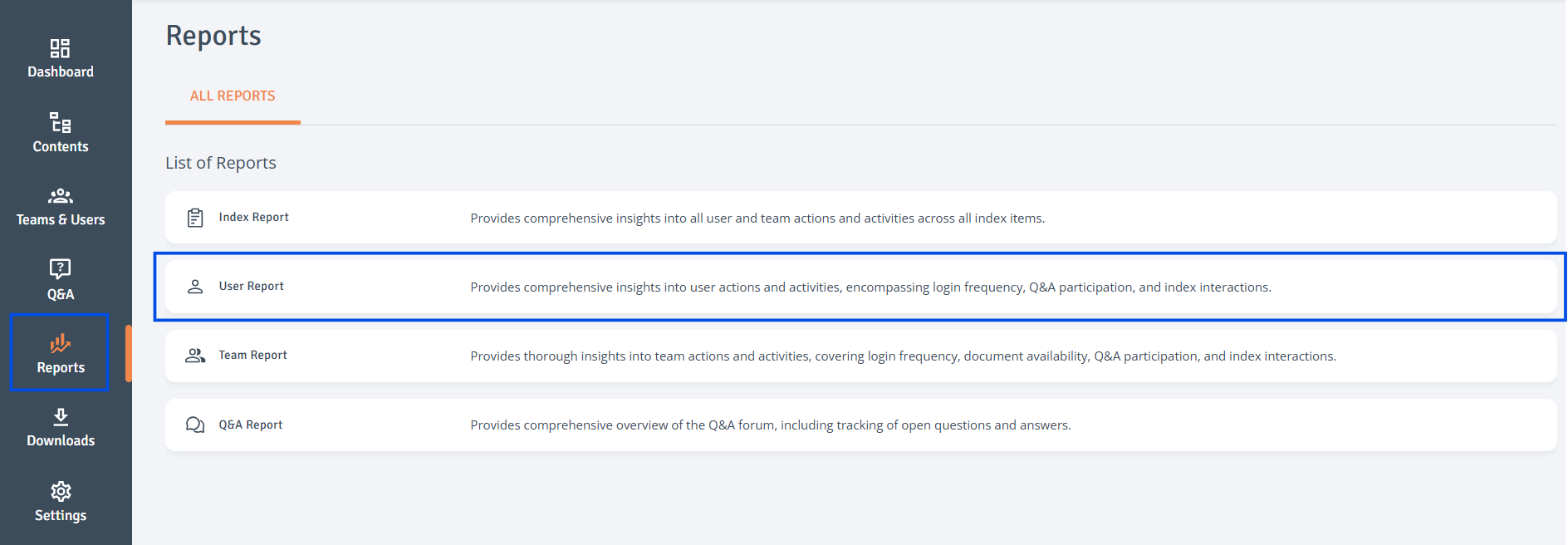
Go to Reports: Access the Reports page from the left-hand navigation bar.
-
Select Report: Click on ‘User Report’ to open it.
-
Customise Report: For more options, use the search fields in the table headers. Click the three-dot menu to sort or lock/unlock columns. Drag a column header to move the column.
-
Customise Columns: To adjust column visibility, click 'Columns' at the top right of the table. A side drawer will open, allowing you to choose which columns to display.
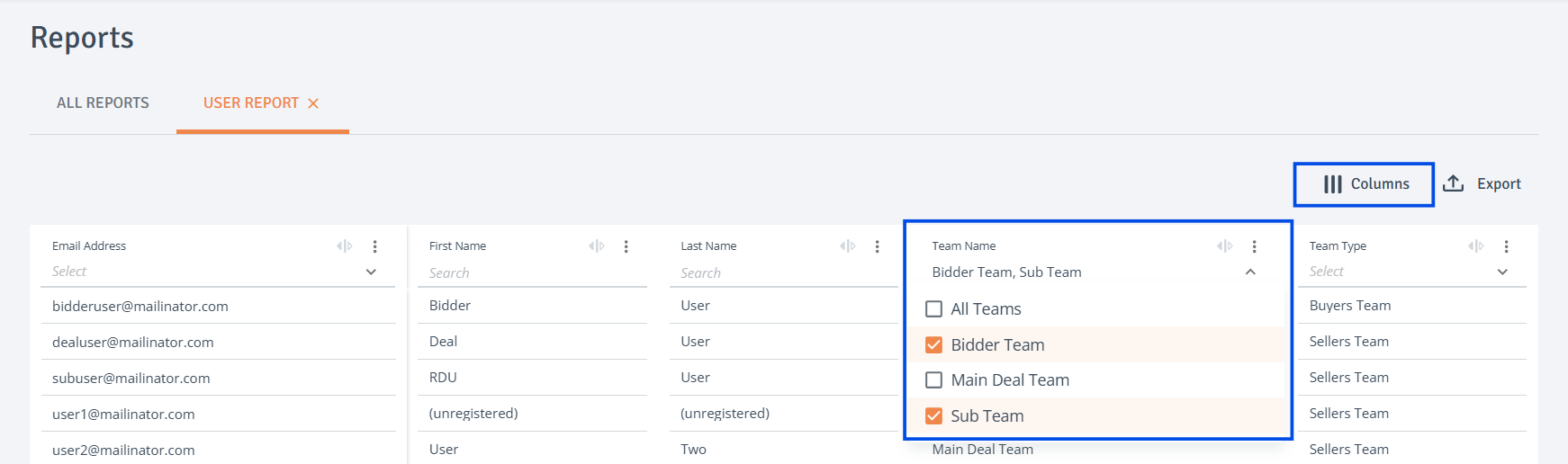
Reset all column filters by using ‘Reset Filters’ option at the top right of the table.

-
Export Report: Select ‘Export’ at the top right of the table. The report will then be prepared for download in your 'Downloads' tab.
-
Download Report: Once the status is updated to 'Ready to Download', simply click 'Download' to download it.

Related articles