To update user settings, follow the steps below.
-
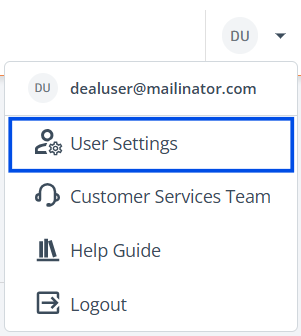
Access User Settings: Navigate to the top right corner of the ‘Projects’ page, click on your User Initials, and select 'User Settings' from the dropdown.
-
Choose Tab: In the ‘User Settings’ page, navigate to the desired tab to make your changes.

Personal info
-
Access Editing: Click on ‘Edit’ located in the top right corner of this section.
-
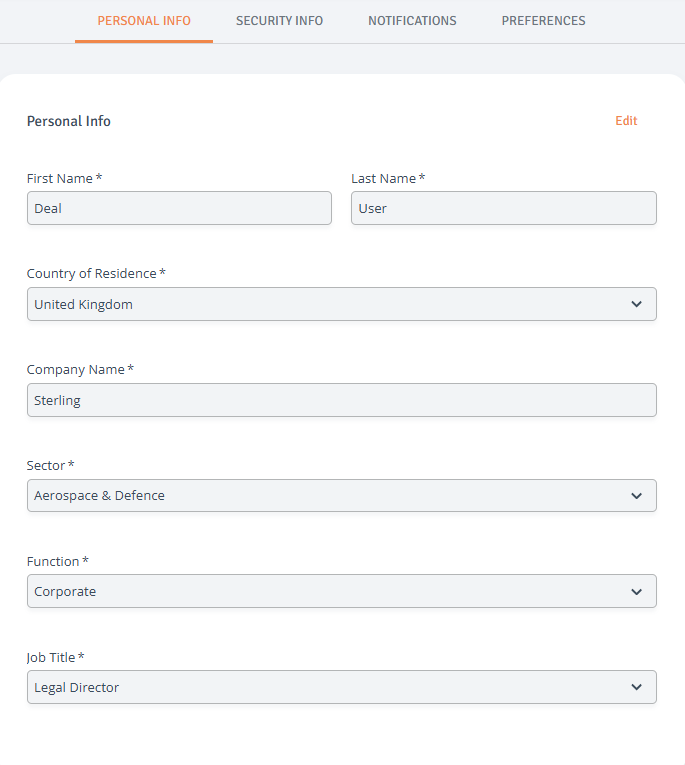
Modify Personal Details: Update your personal information, including name, country of residence, company name, sector, function, and job title.
-
Save Changes: Click ‘Save’ to confirm and save your updates.
Security info
-
Access Editing: Click on ‘Edit’ located in the top right corner of this section.
-
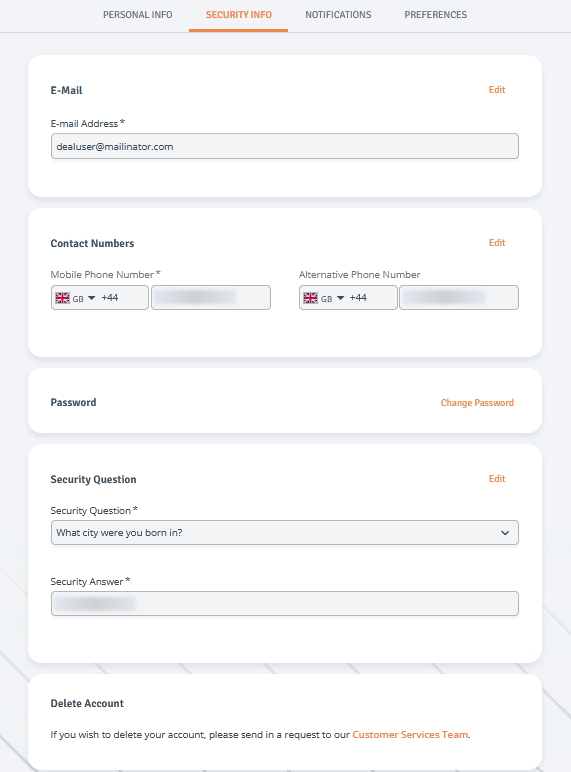
Modify Security Details: Update your email address, phone number, security question, change the password and request account deletion.
-
Save Changes: Click ‘Save’ to confirm and save your updates.
-
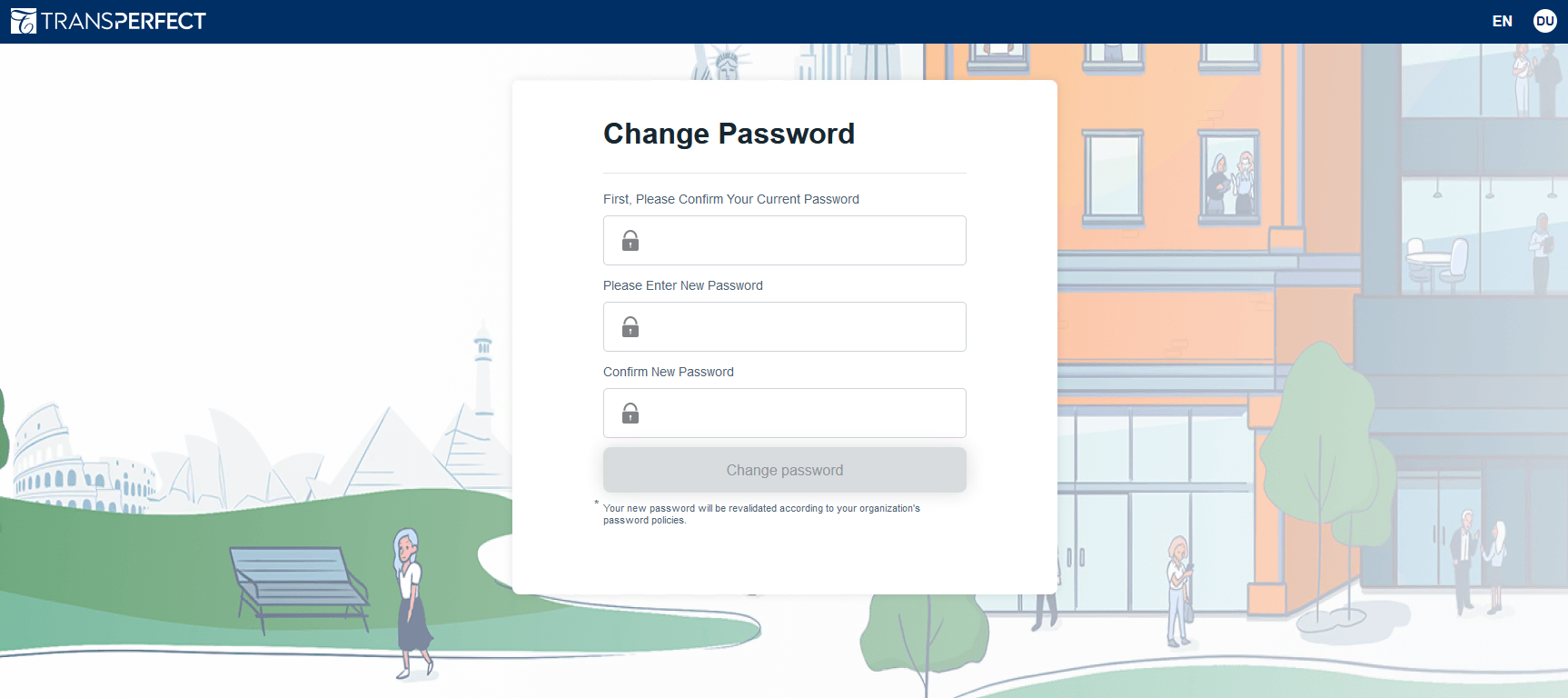
Change Password: Selecting to change your password will redirect you to the TransPerfect page.
Sterling Technology is a part of the TransPerfect family, and password changes are handled on our affiliated page.
Notifications
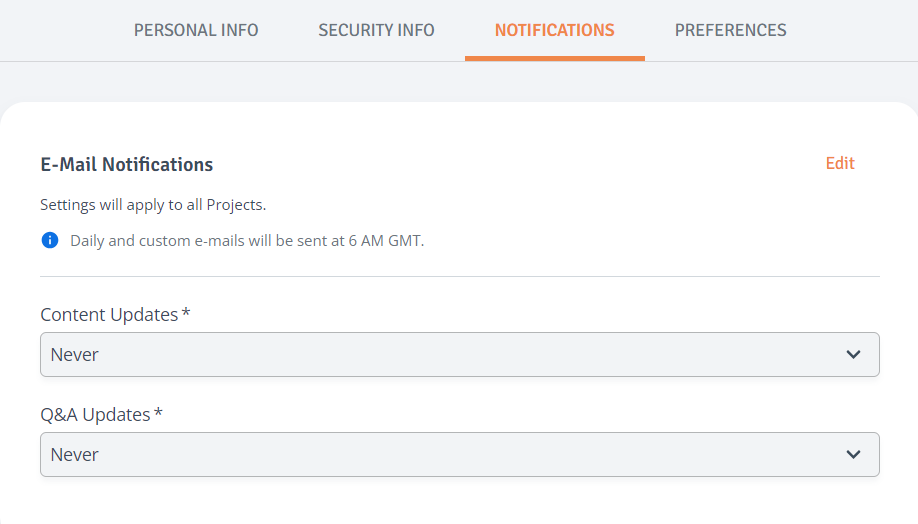
Settings will apply to all projects.
-
Access Editing: Click on ‘Edit’ located in the top right corner of this section.
-
Modify Email Settings: Adjust your email notification preferences for Contents and Q&A activity.
-
Save Changes: Click ‘Save’ to confirm and save your updates.
Preferences
-
Access Editing: Click on ‘Edit’ located in the top right corner of this section.
-
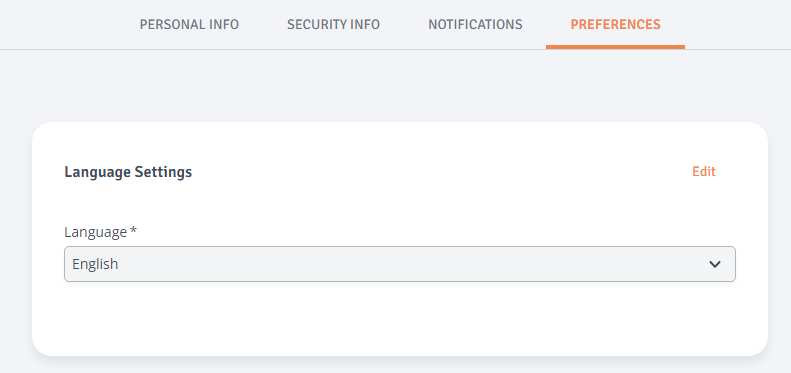
Update Language Settings: Set the preferred language for all your projects.
-
Save Changes: Click ‘Save’ to confirm and save your updates.