
To add a team, follow the steps below.
Users with the ‘Full Admin’ and ‘User Manager’ roles can add teams.
-
Teams & Users Page: Navigate to the ‘Teams & Users’ page from the left side panel.
-
Select Users Group: Choose the ‘Internal' or ‘External' tab at the top of the table, depending on where you want to create your team.
-
Add Team: Click ‘Add Team’ on the top right-hand side of the table and the side drawer will open.

-
Team Details:
-
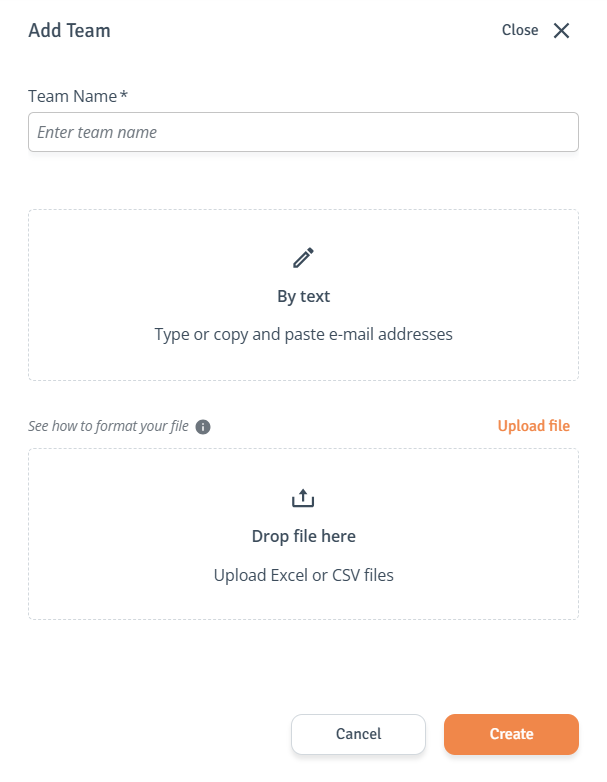
In the ‘Add Team’ drawer, enter the team name.
-
Next, enter the email addresses of the users you want to invite using the ‘By text’ field to type or paste them. To add user email addresses in bulk, upload or drag in an Excel or CSV file. This step can be completed now, or it can be skipped and users added later.
-
When ready, click ‘Create’ to create the team. Invitations will be sent out to added users.
-
-
Team Created: The team has been created and is now available on the ‘Teams & Users’ page. Users can be invited, roles assigned, and team settings edited.
External user invites will only be sent if the room is in Live status. For other room statuses, invites are saved as drafts.