
Users with the ‘Full Admin’ and ‘User Manager’ roles can assign roles to other users in the Project.
To assign user roles, follow the steps below.
-
Teams & Users Page: Navigate to the ‘Teams & Users’ page from the left side panel.
-
Select Users Group: Select either the ‘Internal’ or ‘External’ tab at the top of the table, depending on who you want to assign the role to.
-
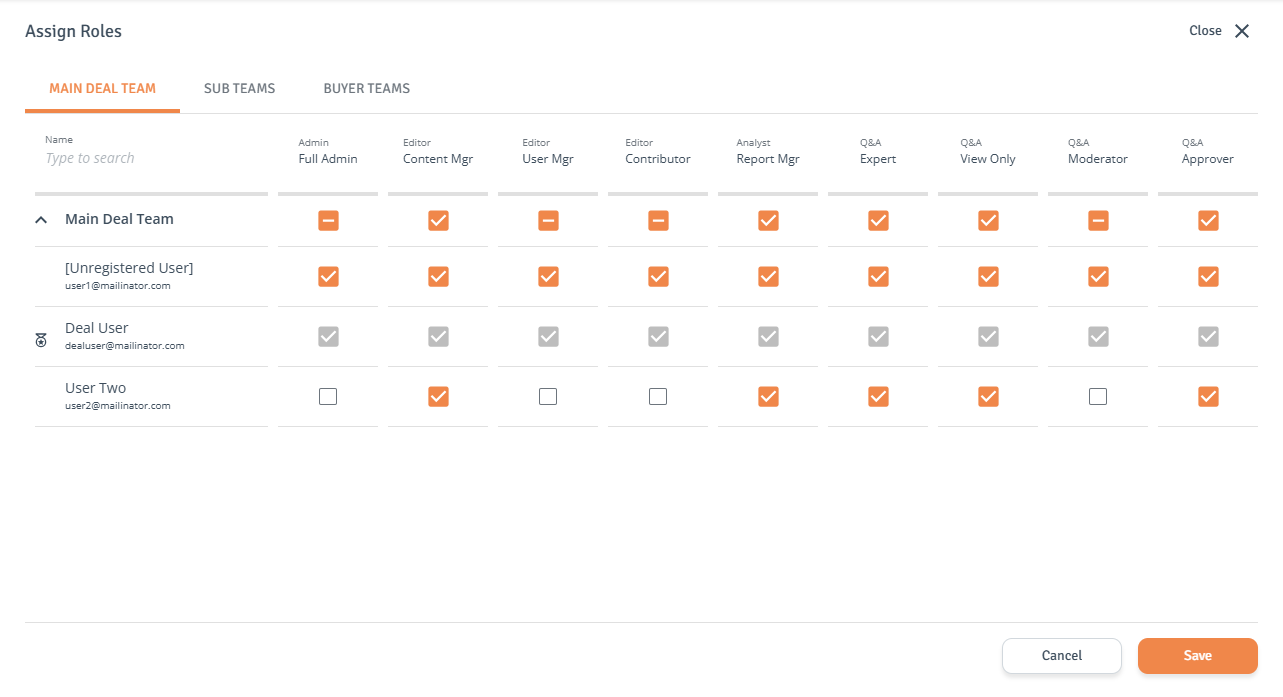
Open Assign Roles: Click ‘Assign Roles’ to the right of the team type. This will open the ‘Assign Roles’ page.

-
Select Users Group: Select the ‘Main Deal Team,’ ‘Sub Teams,’ or ‘External Teams’ tab at the top of the table. To find a specific user to edit, use the search box in the ‘Name’ column (minimum 3 characters required).

-
Assign or Revoke: Use the checkboxes next to each user’s name in the table to assign or revoke roles. Changes made at the team level will apply to all users in that team.
Deal Manager role is greyed out as it cannot be edited. To update this user’s access, choose a new Deal Manager in Project settings.
-
Save Changes: When ready, click ‘Save’ to save the changes.