
Users with the ‘Full Admin’ and ‘User Manager’ roles can invite other users to the project.
To invite users, follow the steps below.
-
Teams & Users Page: Navigate to the ‘Teams & Users’ page from the left side panel.
-
Select Users Group: Choose the ‘Internal' or ‘External' tab at the top of the table, depending on the team you want to invite the user to.
-
Invite User: Click ‘Invite Users’ located to the right of the team type.

-
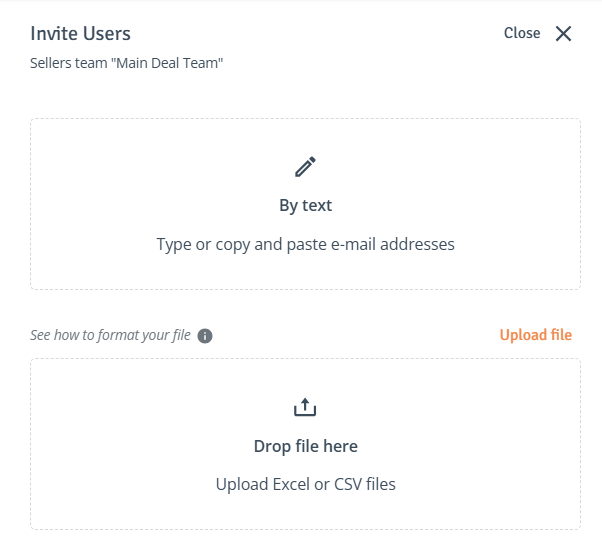
User Details: An ‘Invite Users’ drawer will open, providing options to::
-
Type or Paste: Type or copy and paste the user’s email address in the field marked ’By text'.
-
Drop or Upload: Invite users in bulk by dragging and dropping an Excel or CSV file to the ‘Drop file here’ area, or by selecting 'Upload File'.
-
-
Sending Invite: When ready, click ‘Invite’ to add the user to the team and to send the invite immediately. Alternatively, select ‘Save draft’ to add the user to the team without sending an invitation; the status will remain ‘Invitation Drafted’ until the invite is sent.
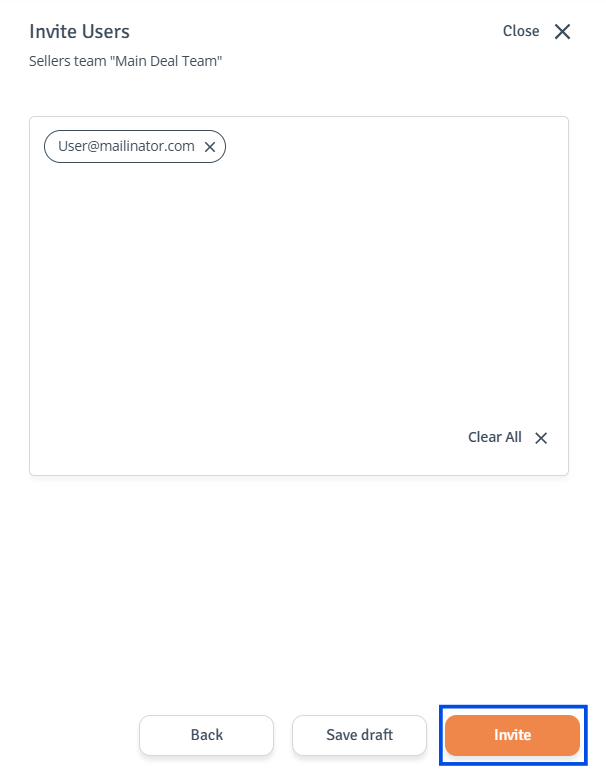
When a project is in ‘Under Preparation’ status, external users can be added, but invitations are saved as drafts since access is not yet available.
Once the project status is set to 'Live', the invitations can be sent to all drafted users.
-
User Invited: The user has been added to the team and appears under the selected team. You can now Assign Roles and Edit User details.