
Users with the ‘Full Admin’ and ‘User Manager’ roles can edit users.
To edit users, follow the steps below.
-
Teams & Users Page: Navigate to the ‘Teams & Users’ page from the left side panel.
-
Locate User: Select either the 'Internal' or 'External ’ tab at the top of the table. Use the Search located at the top right corner of the page to find the user you wish to edit. The search requires a minimum of 3 characters. Use the Filter to filter by user status.
-
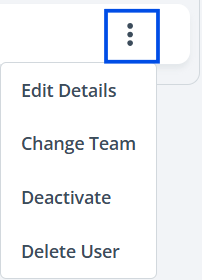
Edit User: Click the three-dot menu and select an action from the list.
-
Edit Multiple Users: Select users using the checkboxes next to their names, then choose your desired action from the options listed above the table.

-
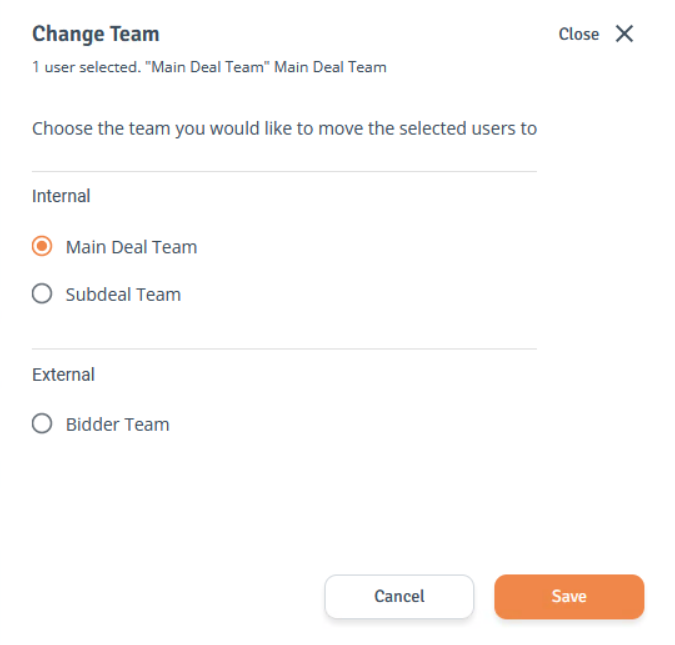
Change Team: Select ‘Change Team’ to move the user to a different team. The side drawer will open, allowing selection of the new team.
-
Deactivate User: Select ‘Deactivate’ to disable the user’s access to the project.
-
Delete User: Select ‘Delete’ to remove the user from the project.
-
Save Changes: When ready, click ‘Save’ to save the changes.