
Users with the ‘Full Admin’ and ‘User Manager’ roles can edit teams.
To edit the team, follow the steps below.
-
Teams & Users Page: Navigate to the ‘Teams & Users’ page from the left side panel.
-
Select Users Group: Select either the ‘Internal’ or ‘External’ tab at the top of the table, depending on which team you want to edit.
-
Edit Team: Click ‘Settings’ located to the right of the team type.

-
Settings: A side drawer will open with two tabs ‘Team Settings’ And ‘Security’.
-
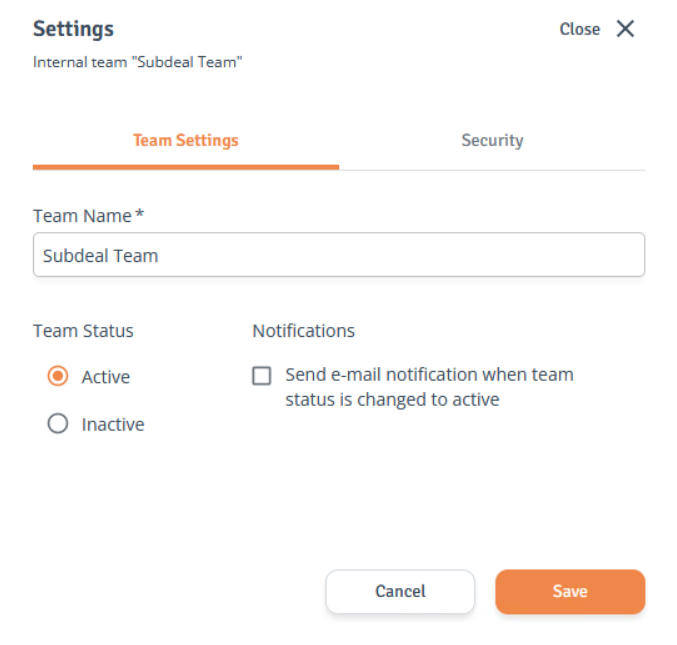
Team Settings: Select 'Team Settings' to edit the Team Name.
When editing a Sub or External team, an additional ‘Team Status’ option appears. The team can be deactivated by changing its status from Active to Inactive.When the status is changed back to Active, users can be notified by selecting the notifications checkbox.
-
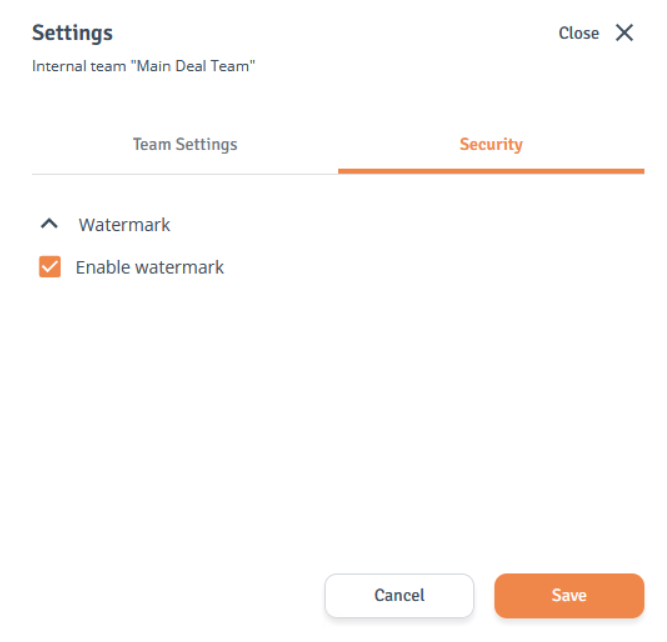
Security: Select the ‘Security’ tab to enable or disable the Watermark feature for the selected team. The Watermark can be customized under Project settings.
Save Changes: When ready, click ‘Save’ to save the changes.
-