
Content is locked while permissions are being edited.
To copy permissions, follow the steps below.
-
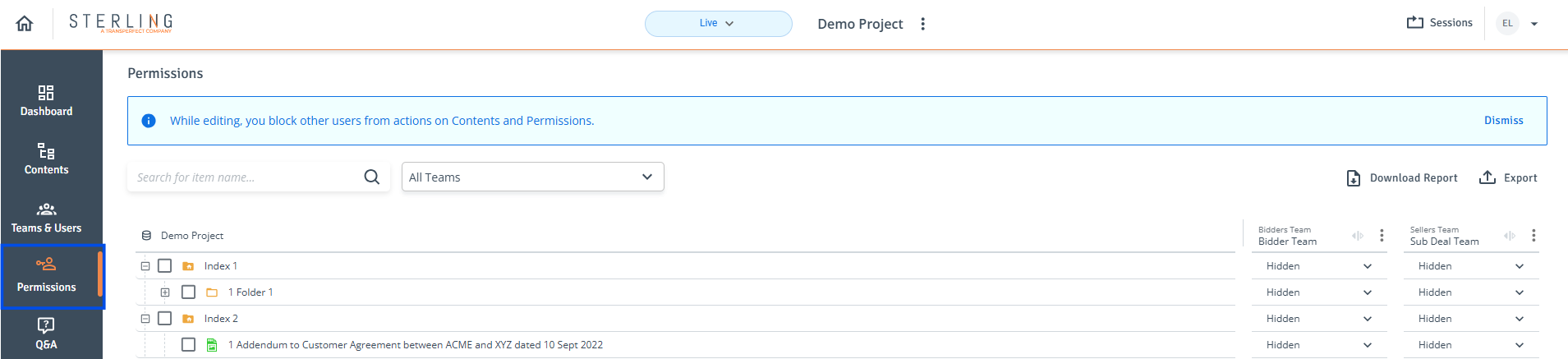
Permissions Page: Navigate to the ‘Permissions’ page from the left side panel.
-
Copy and paste to one team:
-
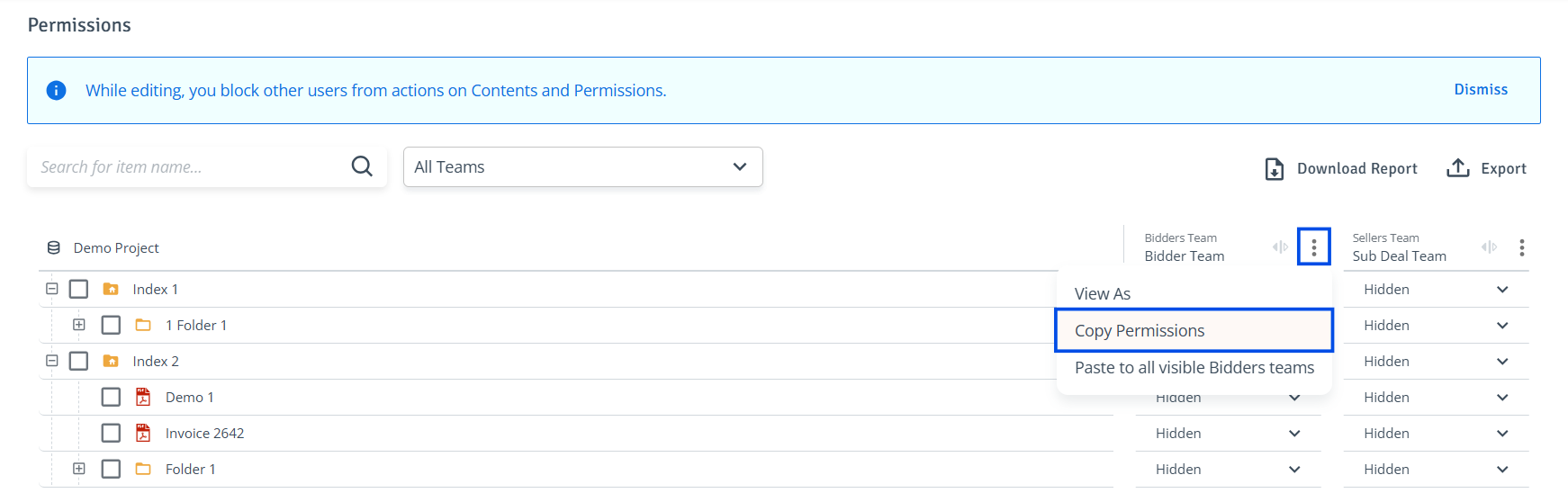
Select the team to copy permissions from, click the three-dot menu, and choose ‘Copy Permissions’.
-
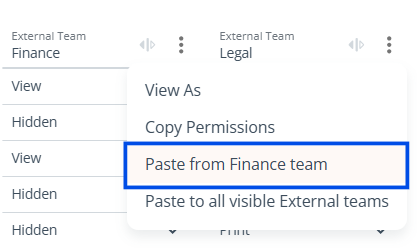
Click on the three-dot menu of the destination team, then select ‘Paste from [name] team’.
-
-
Paste to multiple teams: Copied permissions from a specific team can be applied to multiple teams of the same type. For example, permissions from one External team to all visible External teams, or permissions from one Internal Sub team to all visible Internal Sub teams.
The term 'visible' refers to the teams that are displayed in the table at the time.-
Copy Permissions: In the ‘Team Name’ column on the left, select the team to copy permissions from, click the three-dot menu, and choose ‘Copy Permissions’.
-
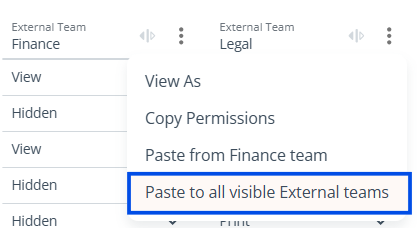
Paste Permissions: Click on the three-dot menu of any destination team, then select ‘Paste to all visible Sub Teams’ or ‘Paste to all visible External Teams’.
-
-
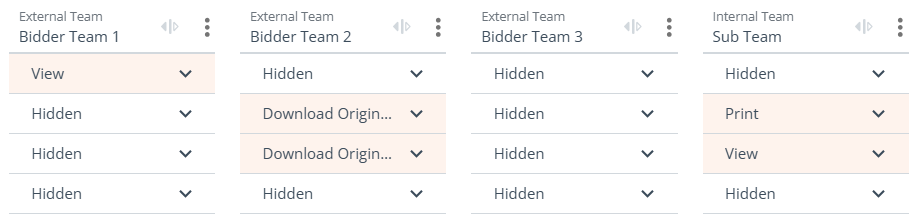
Review Changes: Changes will be highlighted to indicate edited permissions for that item.
-
Publish or Save: Click ‘Publish’ to apply permission changes, or ‘Save’ to retain changes for later.