Index changes will be visible to users only after the Session is published, applicable if Sessions are enabled at the Project level.
Create new folder
Users with the ‘Full Admin’ and ‘Content Manager’ roles can add a folder.
Organise your index tree content using indexes and folders. To add a new folder to the Project, follow the steps below.
-
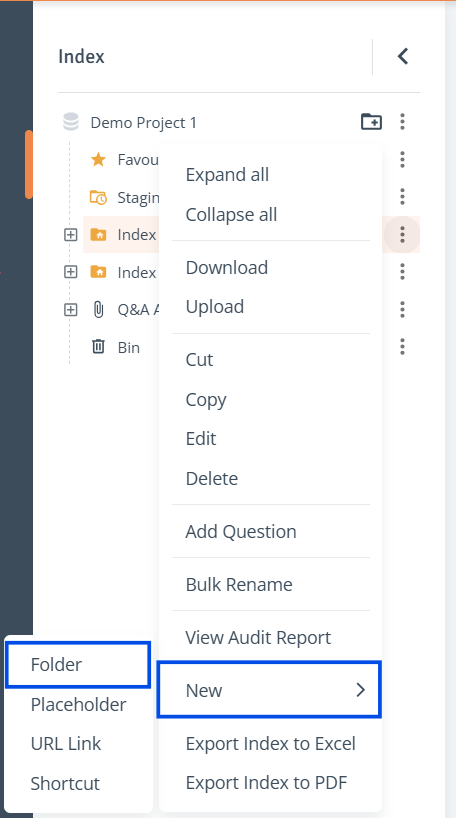
New Folder: On the ‘Contents’ page, choose the location in the Index where the new folder will be added. Click on the three dot menu, select ‘New’, then ‘Folder’ and the side drawer will open.
-
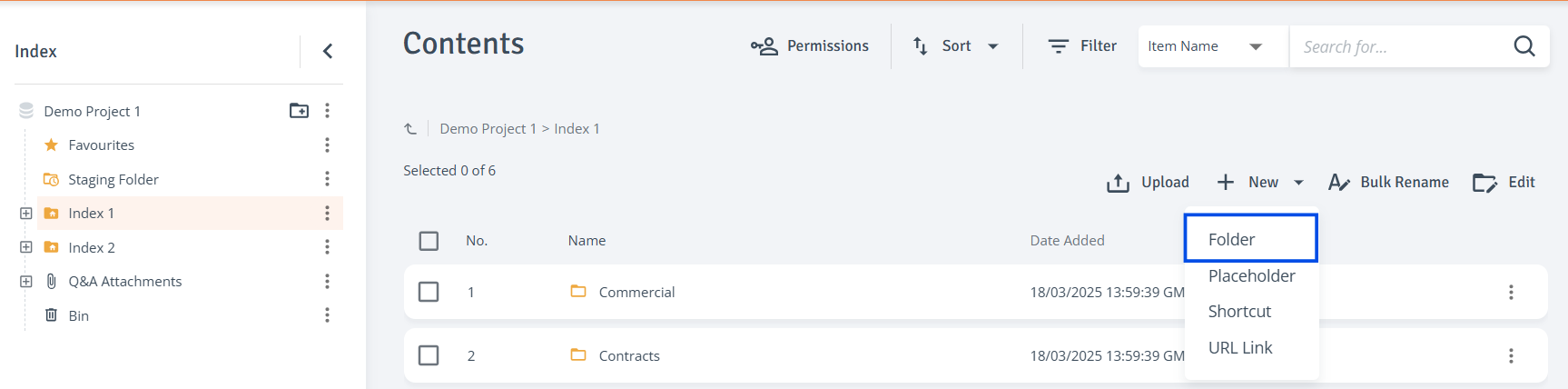
The folder can also be added from the Contents table. Click ‘New’ on the right side of the Contents table to open a dropdown. Select ‘Folder’, and the side drawer will open.
-
Enter Details: In the 'New Folder' side drawer, enter the folder name. To hide the folder from External and Sub Teams, select the 'Apply hidden permission' checkbox at the bottom of the drawer.
Click ‘Save’ to create the folder.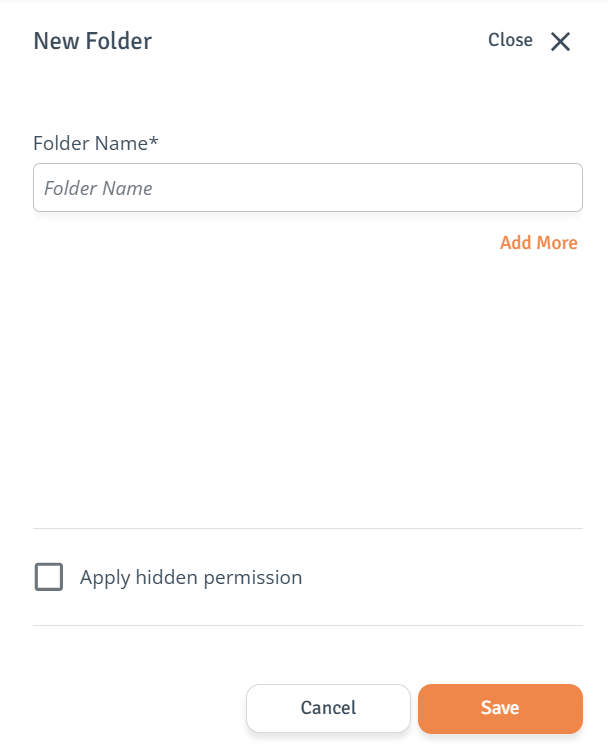
Manage folder
To edit properties, delete, copy or bulk rename the folder, follow the steps below.
-
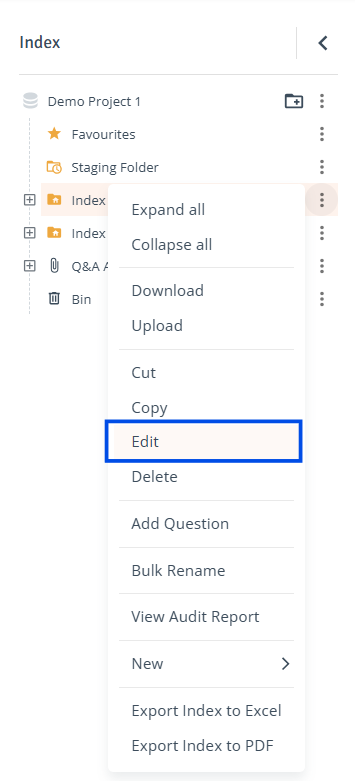
Edit Folder: Click the three-dot menu next to the folder you want to edit and select ‘Edit'. The side drawer will open where you can modify the folder name and click ‘Save’.
-
Delete Folder: Click the three-dot menu next to the folder and select ‘Delete’ from the dropdown.