
Index changes will be visible to users only after the Session is published, applicable if Sessions are enabled at the Project level.
Upload content
Users with the ‘Full Admin’ and ‘Content Manager’ roles can upload the documents.
Users from the Sub Team can upload documents if they have been assigned the ‘Manage’ permission.
To upload a folder or document to the project, follow the steps below.
-
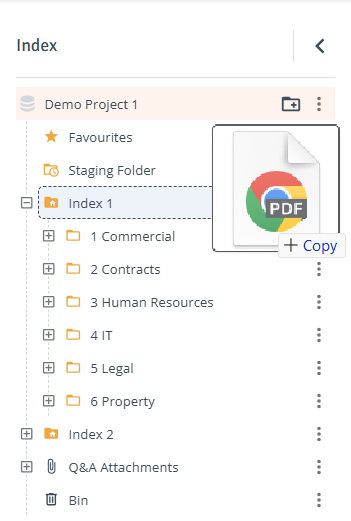
Upload via Drag & Drop: Drag and drop files directly to the destination index or folder.
-
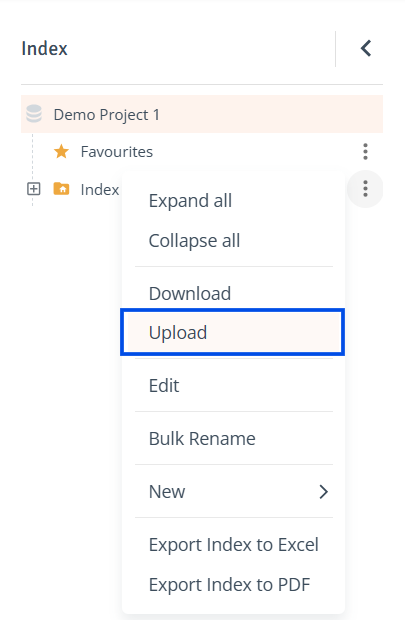
Upload via Upload Drawer: On the ‘Contents' page, click on the three-dot menu of the destination index or folder and select ‘Upload’ from the context menu.
-
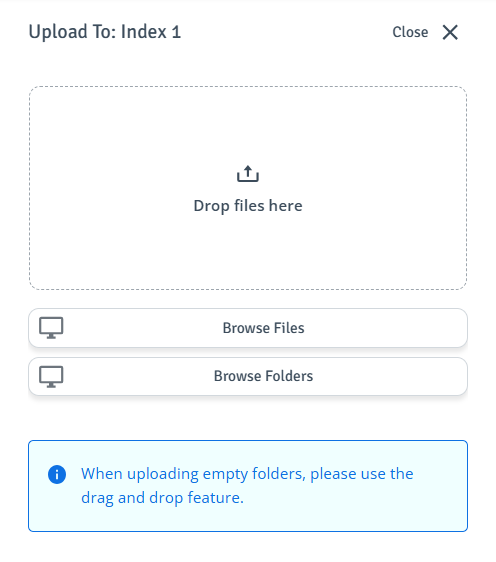
Add Documents: The drawer will open on the right side, enabling you to drag and drop your files or folders to the marked area or upload them from your local storage.
-
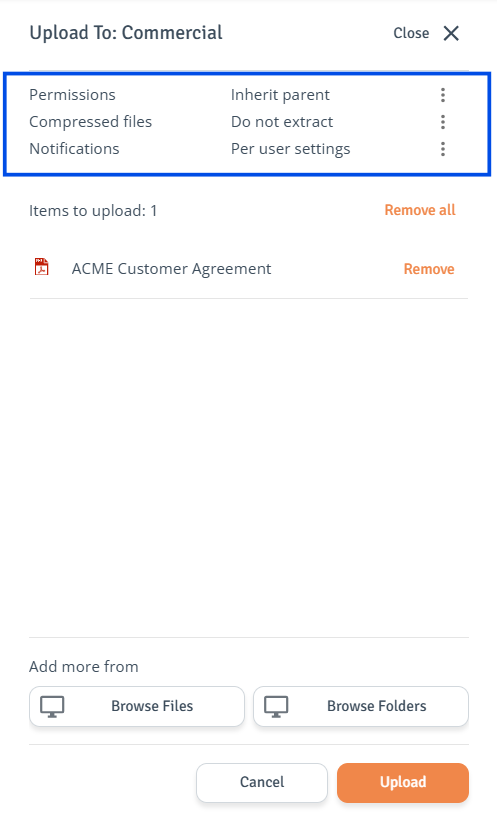
Upload Documents: The drawer view will update to display the documents that are ready for upload.
-
Upload Options: Click the three-dot menu next to an item to adjust permissions, extract compressed files, or change notification settings.
-
Upload: When finished, select ‘Upload’. A toast notification will appear once the files have been successfully uploaded.
When uploading a structure with empty folders, please use the drag and drop feature.
Upload documents to Staging Folder
Only users with the ‘Full Admin’, or Main Deal Team users with ‘Content Manager’, or ‘Contributor’ roles can upload documents to and see the Staging Folder.
The Staging Folder is used to gather project documentation before organizing and publishing it to other users. Users with only the ‘Contributor’ role can upload documents but cannot manage them.
To upload a document to the Staging Folder, follow the steps below.
-
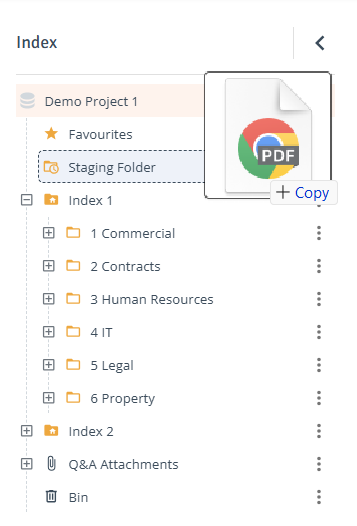
Drag & Drop: Drag and drop the files directly to the Staging Folder.
-
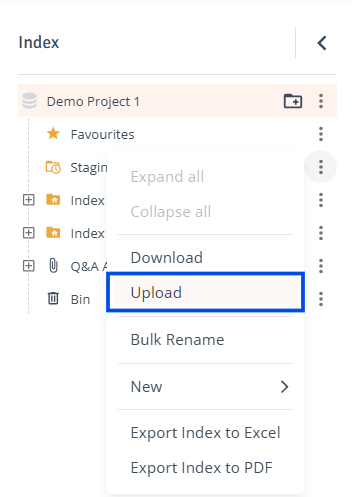
Upload via Upload Drawer: Click on the three-dot menu next to the Staging Folder and select ‘Upload’ from the context menu.
-
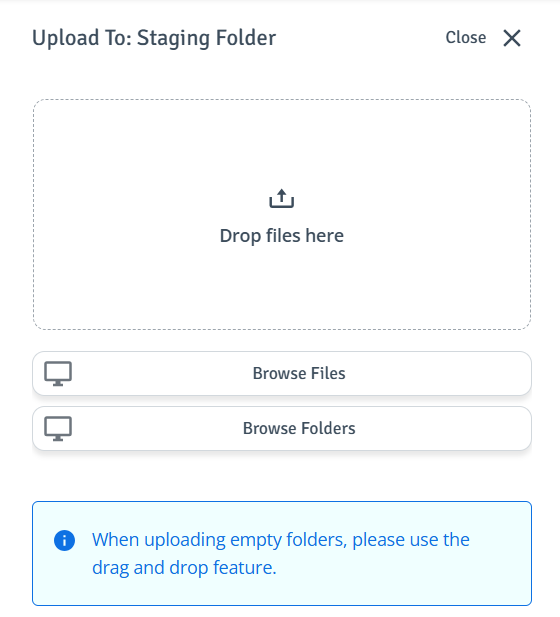
Upload Documents: The side drawer will open, enabling you to drag and drop your files/folders to the marked area or upload them from your local storage.
-
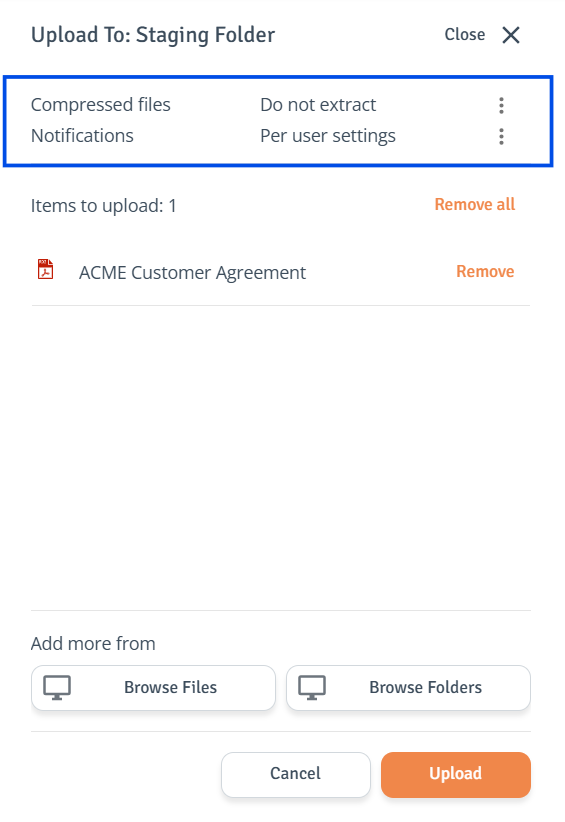
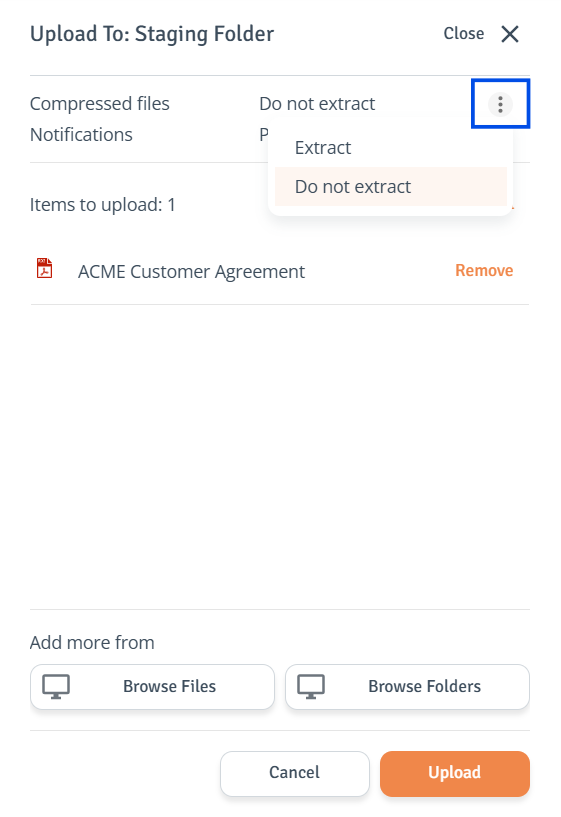
Upload Documents: The drawer view will update to display the documents that are ready for upload.
-
Upload Options: Click the three-dot menu next to an item to extract all compressed files or change notification settings.
When uploading empty folders, please use the drag and drop feature.
-
Upload: When finished, select ‘Upload’. A toast notification will appear once the files have been successfully uploaded.