
Index changes will be visible to users only after the Session is published, applicable if Sessions are enabled at the Project level.
Bulk rename
Bulk rename is a folder or index-level feature that allows you to rename multiple items simultaneously. You can also export the Excel file to edit item names and import it back to apply the changes in the project.
Main Deal Team users with 'Full Admin’, ‘Content Manager’, or 'Contributor’ roles can access the Bulk Rename feature.
Users with a ‘Contributor’ role will be able to Bulk Rename items located in the Staging Folder only.
To bulk rename your index items, follow the steps below.
-
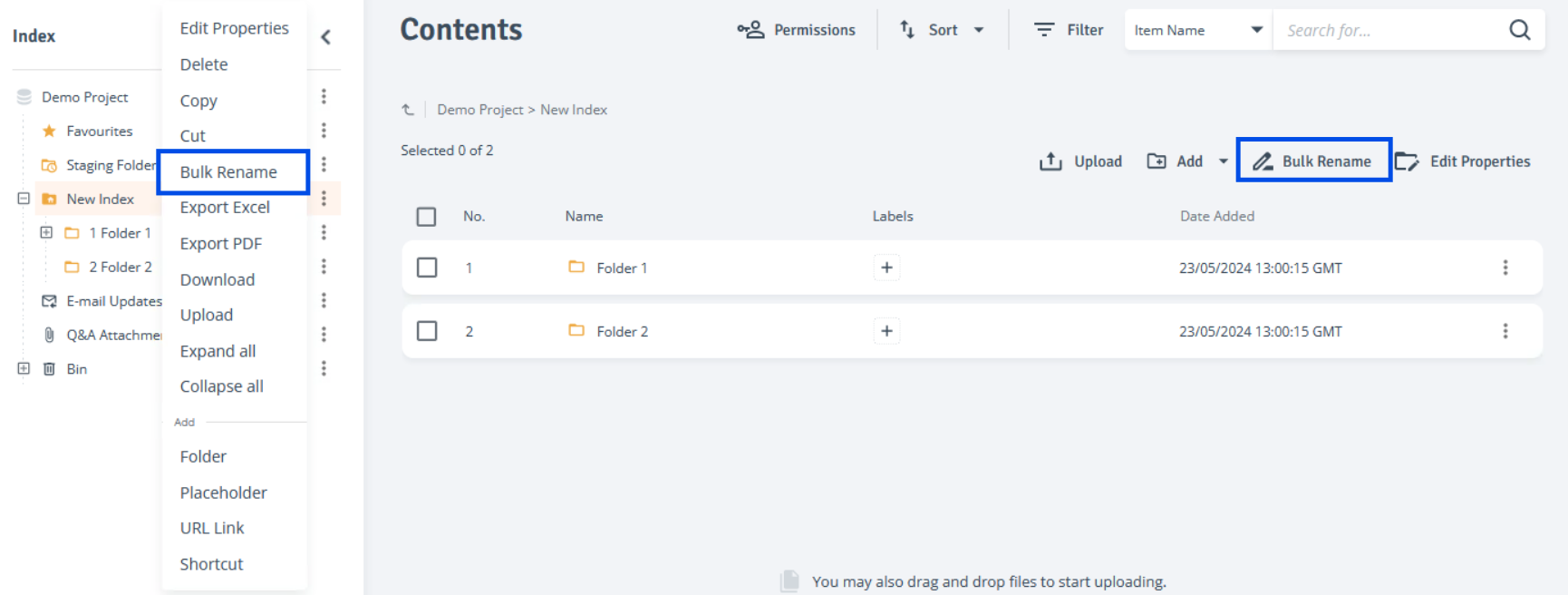
Select Index or Folder: On the ‘Contents’ page, click the three-dot menu next to any index or folder and select ‘Bulk Rename’ from the context menu, alternatively select the ‘Bulk Rename’ above the Contents table.
-
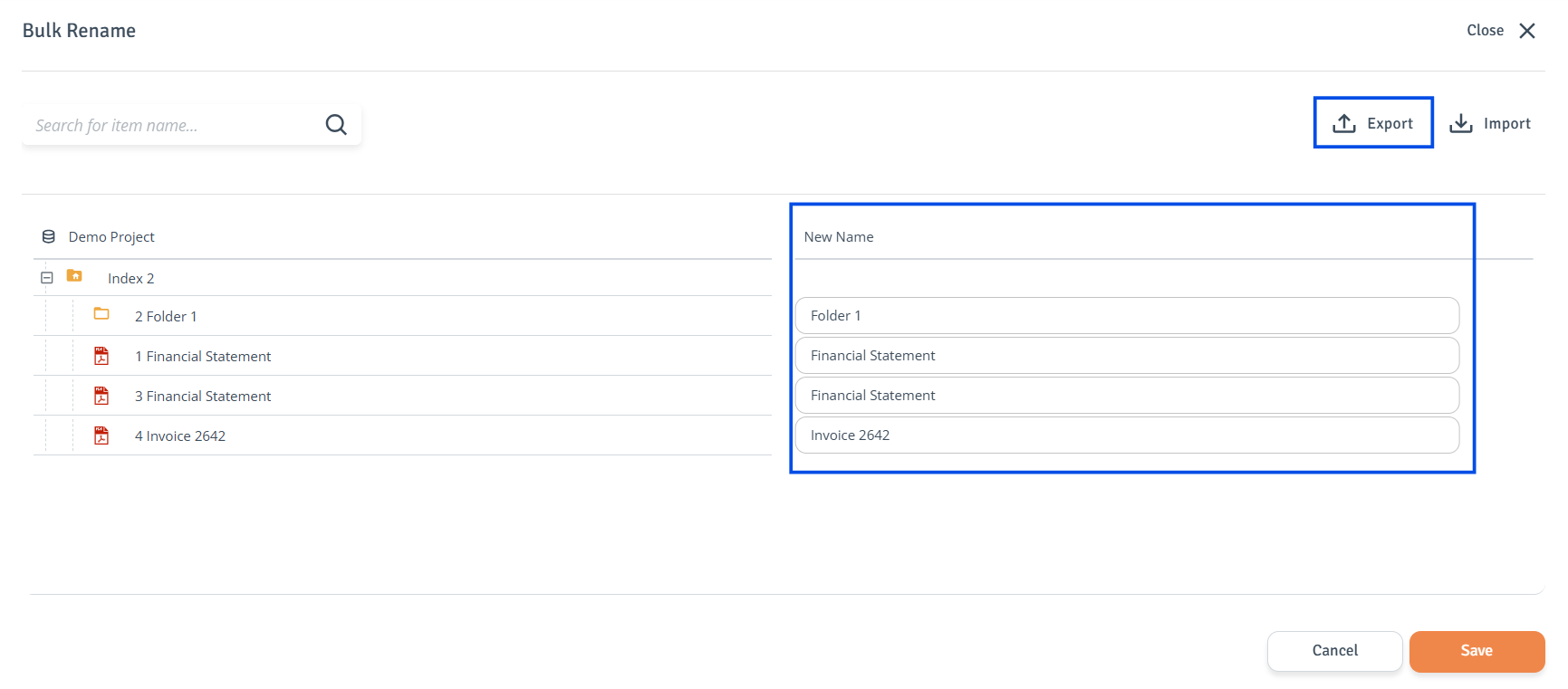
Bulk Rename: The Bulk Rename page will open. Item names can be edited directly on this page, or an Excel file of the selected index or folder can be exported. After updating the item names in the file, import it to apply the changes to the project.
-
Edit on page: To change item name, click on it’s name in the 'New Name' column, enter the new name, and then click 'Save'.
-
Search Items: Use the search option at the top left of the table to find the items you want to edit.
-
Edit using Export/ Import: Click on the ‘Export’ in the Bulk Rename page. The download package will be prepared in the ‘Downloads' tab.
-
Go to 'Downloads' tab to locate your download package and when the status changes to 'Ready to Download', click 'Download' to retrieve the file.

-
Edit file or folder names in the downloaded Excel file and save it. On the Bulk Rename page, select 'Import' and choose the saved file with your applied changes.
-
-
-
Publish Changes (if applicable): Navigate to the Session to publish your changes.
-
Changes Applied: The changes have been applied to the project.