
Documents can be downloaded if the necessary access permissions are granted; if the ‘Download’ option is not visible, you may not have the required permissions. Contact our Customer Services Team for further assistance.
Download documents
To download a document, follow the steps below.
-
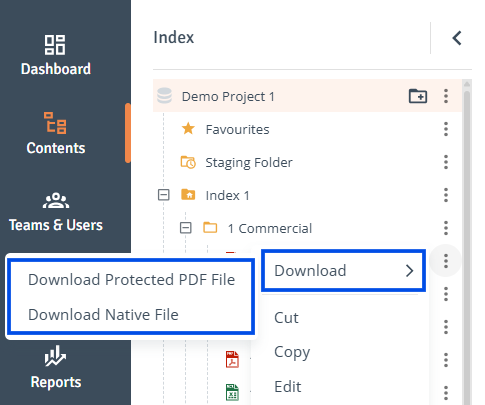
Select Document: On the ‘Contents’ page, click on the three-dot menu of the document you want to download and select ‘Download’ from the context menu.
-
Downloaded Document: The Download PDF Protected File option lets you download the secure file, and the Download Native File option lets you download the original file.
Download folders
Folders can be downloaded if the Bulk Download feature is enabled in the Project settings.
To download a folder, follow the steps below.
-
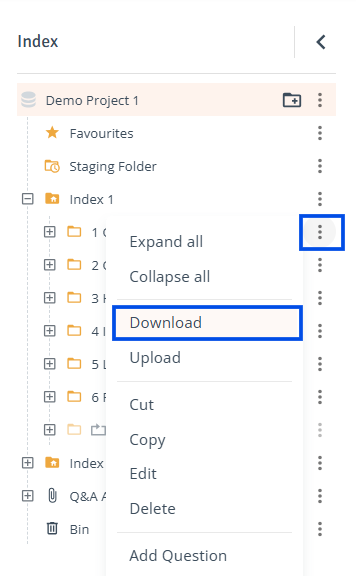
Select Folder: On the ‘Contents’ page, click on the three-dot menu of the folder you want to download and select ‘Download’ from the context menu.
-
Bulk Download: The Bulk Download page will open. Folders or documents can be selected by checking the boxes next to them. When ready, click 'Download'.
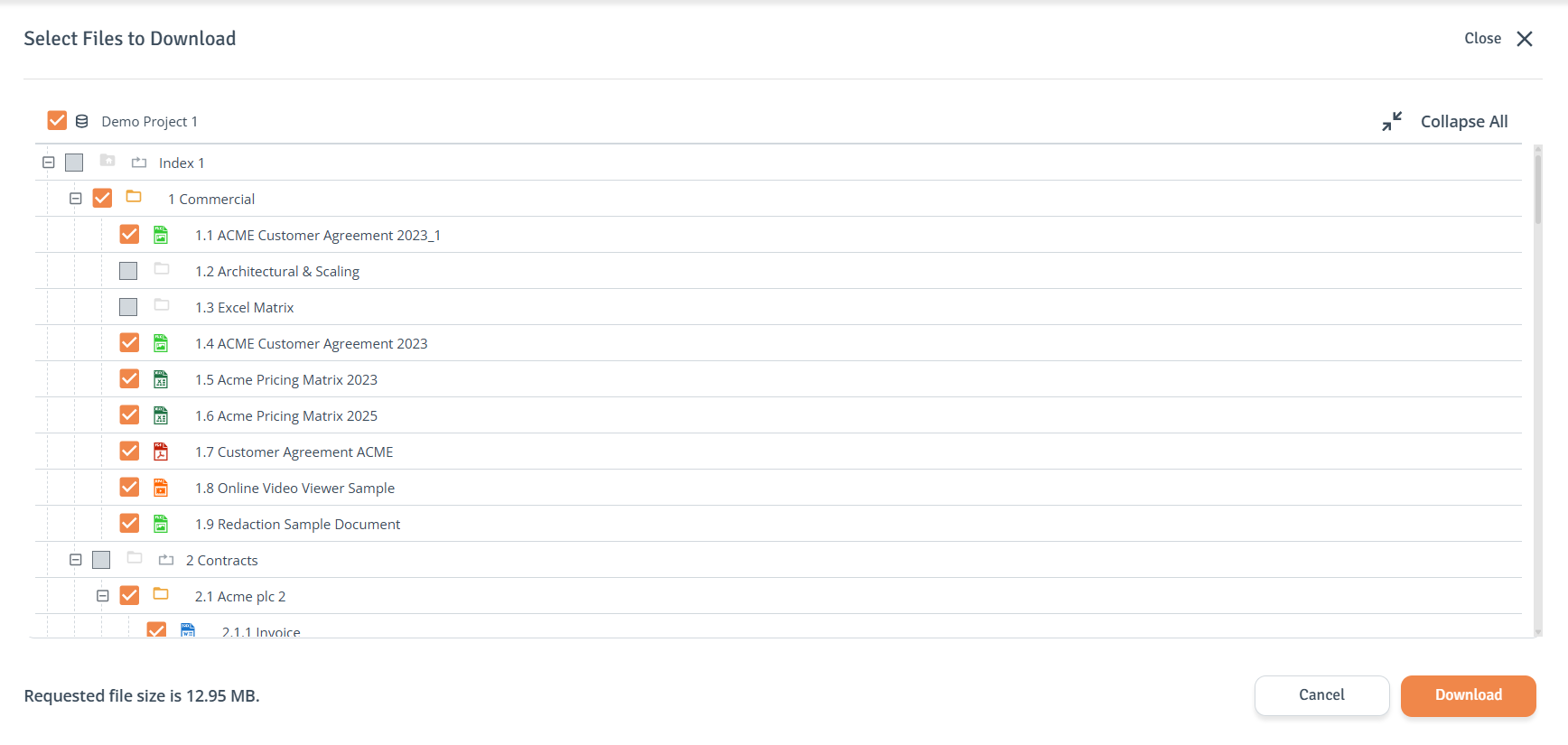
Some items may be greyed out as they have download restrictions, meaning they lack the necessary permissions for downloading. Those items will not be included in your Download package.
-
Download Package: The download will then be prepared in the ‘Downloads' tab. When the status changes to ‘Ready for Download,’ the file can be downloaded by clicking ‘Download.

In the download package, some folder or file names may appear shortened, and certain items may be placed in the 'Files Exceed Windows Path Limit' folder.
This happens due to the way Sterling manages Microsoft’s character limit. Please refer to our 'Bulk Download Guide' for more information.