
This advanced security feature lets you preview index changes before publishing. Changes are held in Sessions and are visible to other users only after the Session is published (applicable if Sessions are enabled at the Project level).
To access and manage Sessions, follow the steps below.
-
Open Session Notification: When a session is open in your Project, a red notification icon will appear with the Sessions button.

-
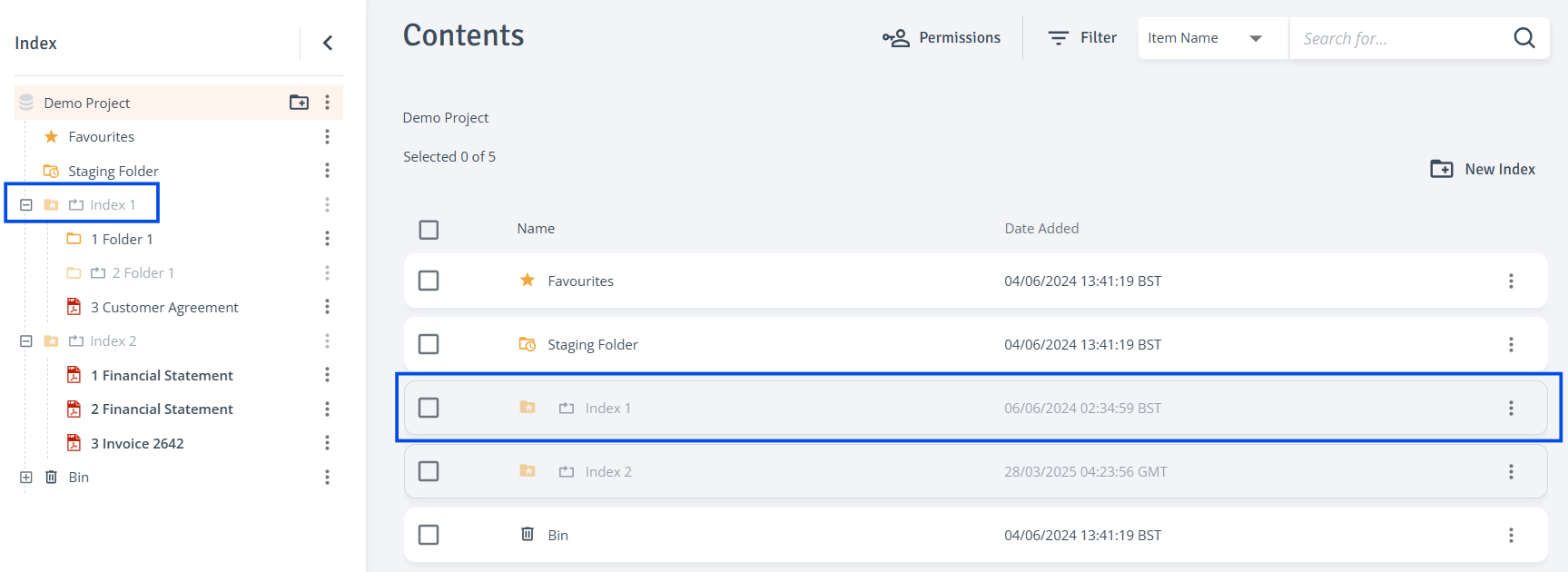
Item in Session: When an item is locked in session, it will be greyed out with a sessions icon next to it in both the Index tree and the Contents table.
-
Access Session Manager: Navigate to the top right corner of the project page, click on ‘Sessions’, and the ‘Session Manager’ page will open.
Users with the ‘Full Admin’ role, or those with a ‘User Manager’ role combined with a ‘Content Manager’ role, can manage other users' sessions.
-
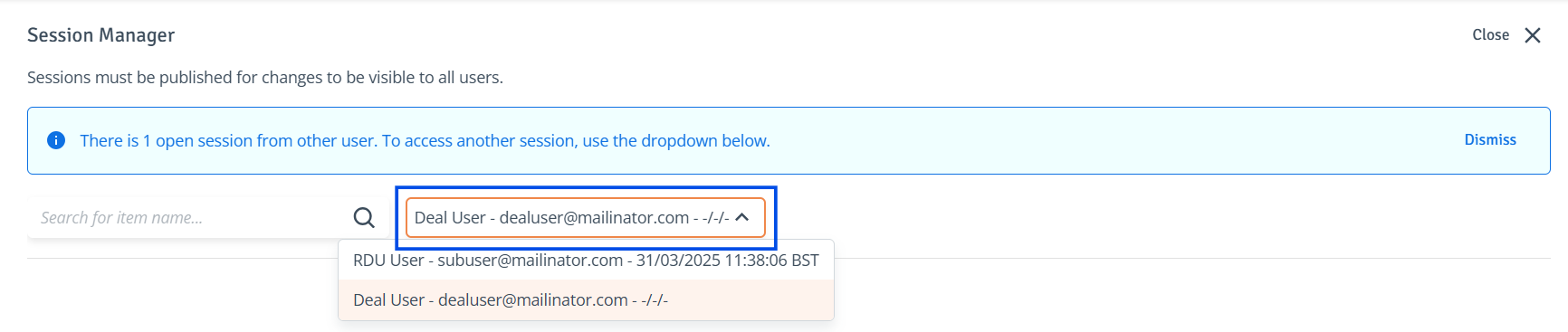
Select Session: Depending on your user role, you may have permission to manage other users' sessions. Select the session you want to manage from the dropdown next to the search bar.
-
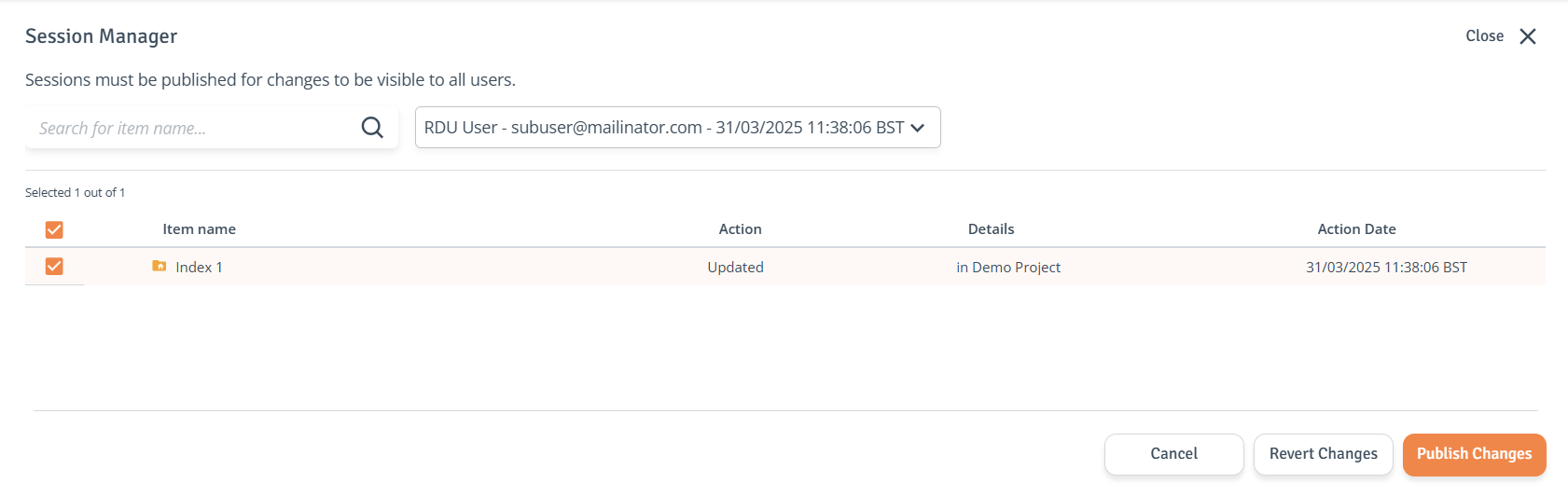
Select Items: Use the checkboxes next to each item to make your selection.
-
Publish or Revert: When ready, click 'Publish Changes' to apply or 'Revert Changes' to undo.
-
Session Dependencies: If the actions being published have dependent items that need to be published together (e.g., a file is selected for publishing but the parent folder is deselected), a toast message will appear, and the dependent items will be added to your selection.
Review carefully, and when ready, click 'Publish Changes' to apply or 'Revert Changes' to undo.

-
Sessions Summary: Published changes are now visible to other project users. If you choose to revert changes, no updates are published, and items are reset to their previous state.