
Only available in the Projects with the Advanced or Extended Q&A flow enabled.
Users with visibility to this thread can download files attached to this answer in their original format, without watermarks, document protection, or redactions.
A user with a Q&A Moderator role is responsible for reviewing the answer and either approving, rejecting, or editing it. Additionally, in the Extended Q&A flow, the Q&A Moderator may choose to send the answer for final approval.
Approve answer
To approve an answer, follow the steps below:
-
Access Answer: Navigate to the Q&A page and use the quick access chips to filter by the ‘Awaiting Approval’ status (both questions and answers awaiting approval will be displayed).
Alternatively, select ‘Filter’ to open the side drawer. Under the ‘Item Status’ dropdown, select the ‘Awaiting Approval Answer’ and then click ‘Apply’ to see the list of answers awaiting approval.
-
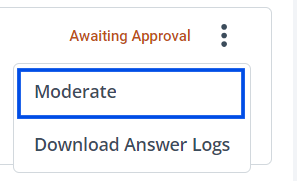
Access Moderate Option: In the answer three-dot menu, click ‘Moderate’ to open the side drawer.
-
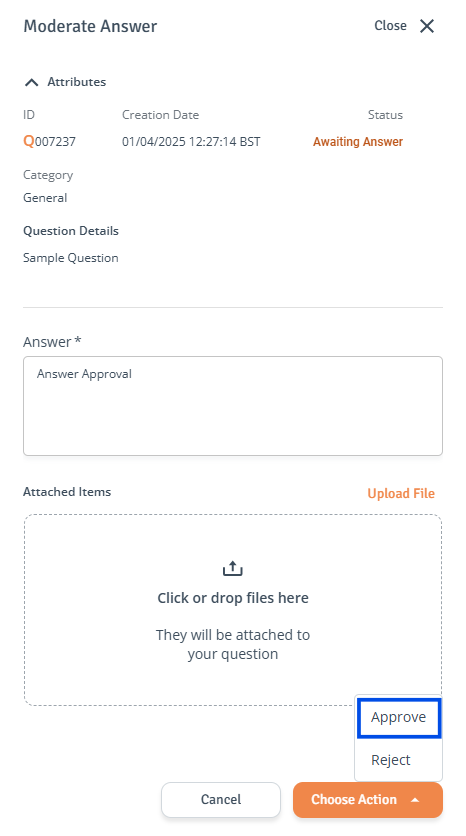
Review Answer: While reviewing the answer, you can edit the answer text if necessary.
-
Approve: Click the ‘Choose Action’ button and select ‘Approve’.
-
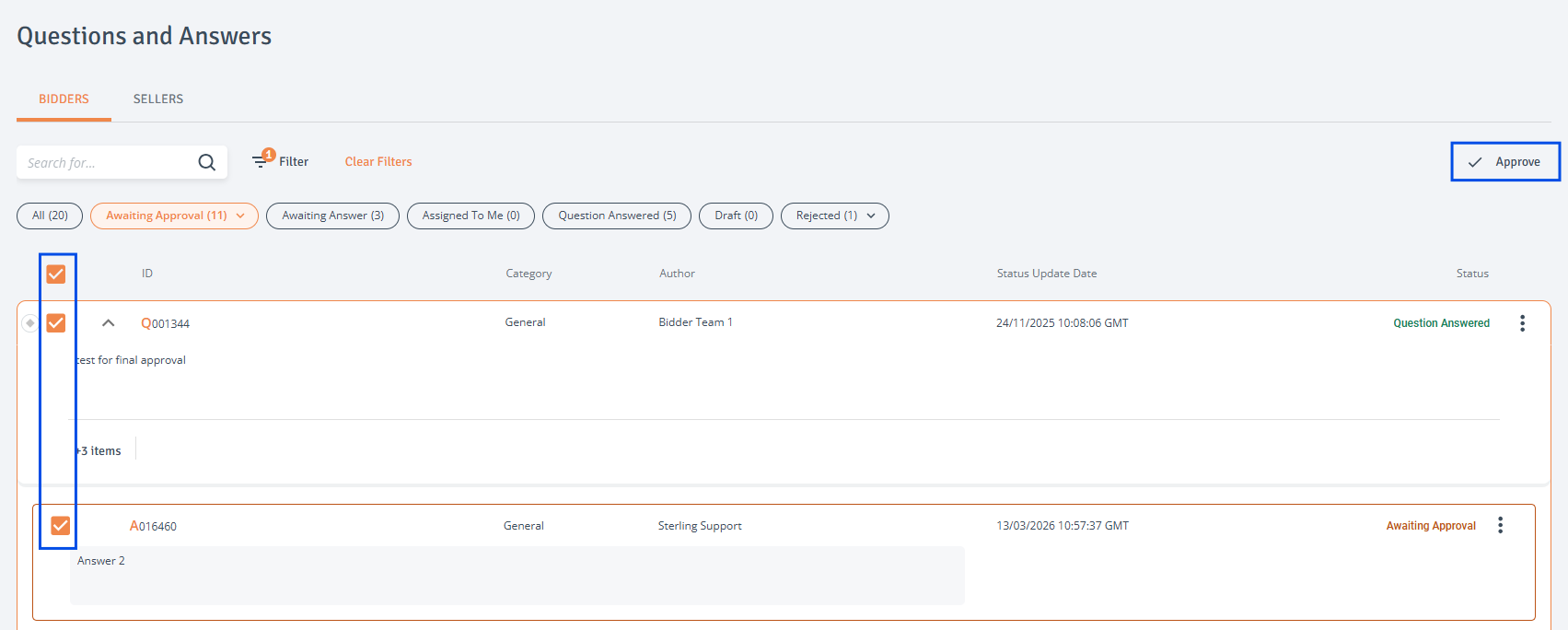
Approve multiple items: Select items using checkboxes and click ‘Approve’ at the top right of the table.
-
Status Update: The answer status will change to ‘Answer Approved’.
Reject answer
To reject an answer, follow the steps below:
-
Access Answer: Navigate to the Q&A page and use the quick access chips to filter by the ‘Awaiting Approval' status.
Alternatively, select ‘Filter’ to open the side drawer. Under the ‘Item Status’ dropdown, select the ‘Awaiting Approval Answer’ and then click ‘Apply’ to see the list of answers awaiting approval. -
Access Moderate Option: In the answer three-dot menu, click ‘Moderate’ to open the side drawer.
-
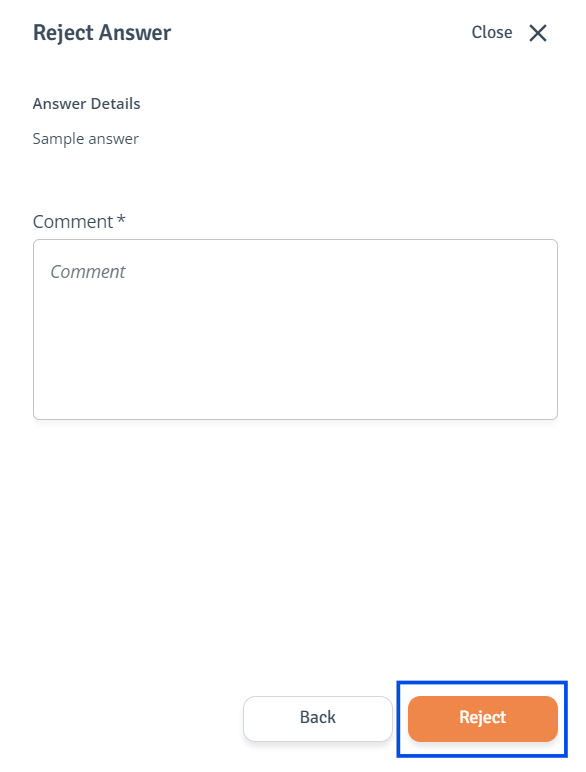
Reject: Click the ‘Choose Action’ button and select ‘Reject’. In the secondary side drawer, add a comment and click ‘Reject’ to confirm.
-
Status Update: The question status will change to ‘Rejected’.
Edit answer
When an answer is in the 'Awaiting Approval' status, a Q&A moderator can edit the answer before providing approval.
To edit an answer, follow the steps below:
-
Access Answer: Navigate to the Q&A page and use the quick access chips to filter by the ‘Awaiting Approval' status.
Alternatively, select ‘Filter’ to open the side drawer. Under the ‘Item Status’ dropdown, select the ‘Awaiting Approval Answer’ and then click ‘Apply’ to see the list of answers awaiting approval. -
Access Moderate Option: In the answer three-dot menu, click ‘Moderate’ to open the side drawer.
-
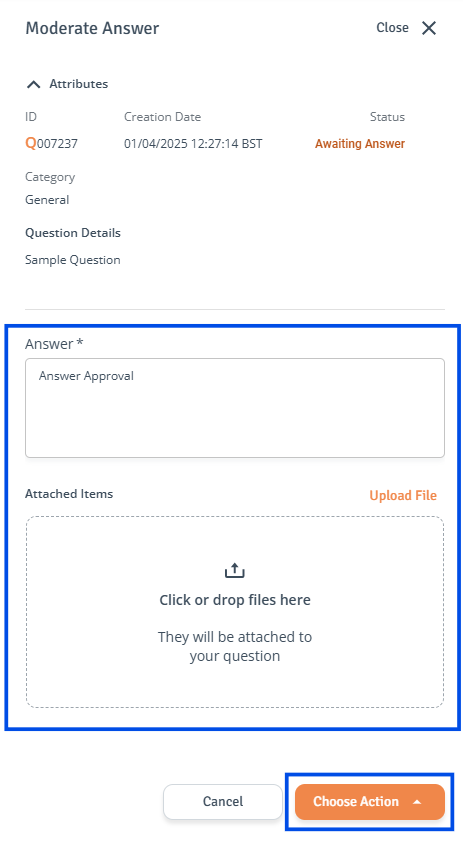
Edit and Review: While reviewing the answer, moderator can:
-
Edit the answer text.
-
Attach items to the answer.
-
-
Approve: After editing and reviewing the answer, click the ‘Choose Action’ button and select the appropriate option.
Send answer for final approval
Only available in Projects with the Extended Q&A flow enabled.
The final approval serves as an additional confirmation, providing an extra sign-off step in the process.
To send an answer for a final approval, follow the steps below:
-
Access Answer: Navigate to the Q&A page and use the quick access chips to filter by the ‘Awaiting Approval’ status.
Alternatively, select ‘Filter’ to open the side drawer. Under the ‘Item Status’ dropdown, select the ‘Awaiting Approval Answer’ and then click ‘Apply’ to see the list of answers awaiting final approval. -
Access Moderate Option: In the answer three-dot menu, click ‘Moderate’ to open the side drawer.
-
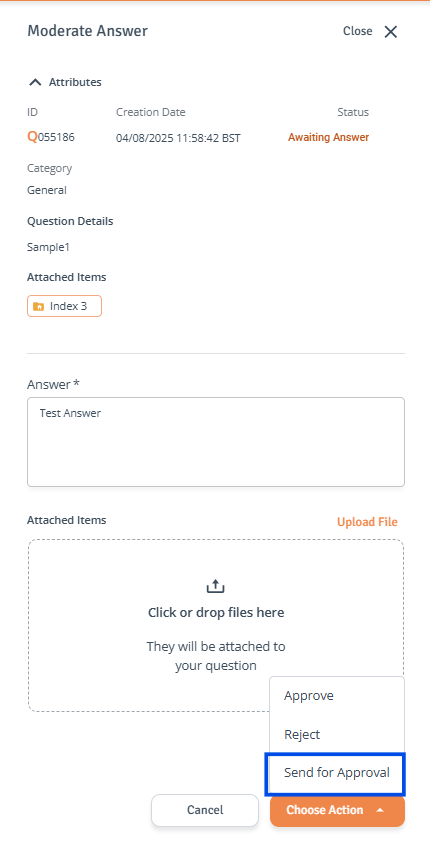
Send for Approval: Click the ‘Choose Action’ button and select ‘Send for Approval’.
The answer will be sent to all users assigned the Q&A Approver role. -
Notification: An email will be sent to the Answer moderator, notifying them that the answer is awaiting their approval.