Only available in Projects with the Advanced or Extended Q&A flow enabled.
A user with the Q&A Moderator role is responsible for reviewing the question and either approving, rejecting, or editing it.
Approve question
If Auto Approve is enabled for the selected category, questions on the internal side will be approved automatically.
To approve a question, follow the steps below:
-
Access Question: Navigate to the Q&A page and use the quick access chips to filter by the ‘Awaiting Approval’ status (both questions and answers awaiting approval will be displayed).
Alternatively, select ‘Filter’ to open the side drawer. Under the ‘Item Status’ dropdown, select the ‘Question Awaiting Approval’ and then click ‘Apply’ to see the list of questions awaiting approval.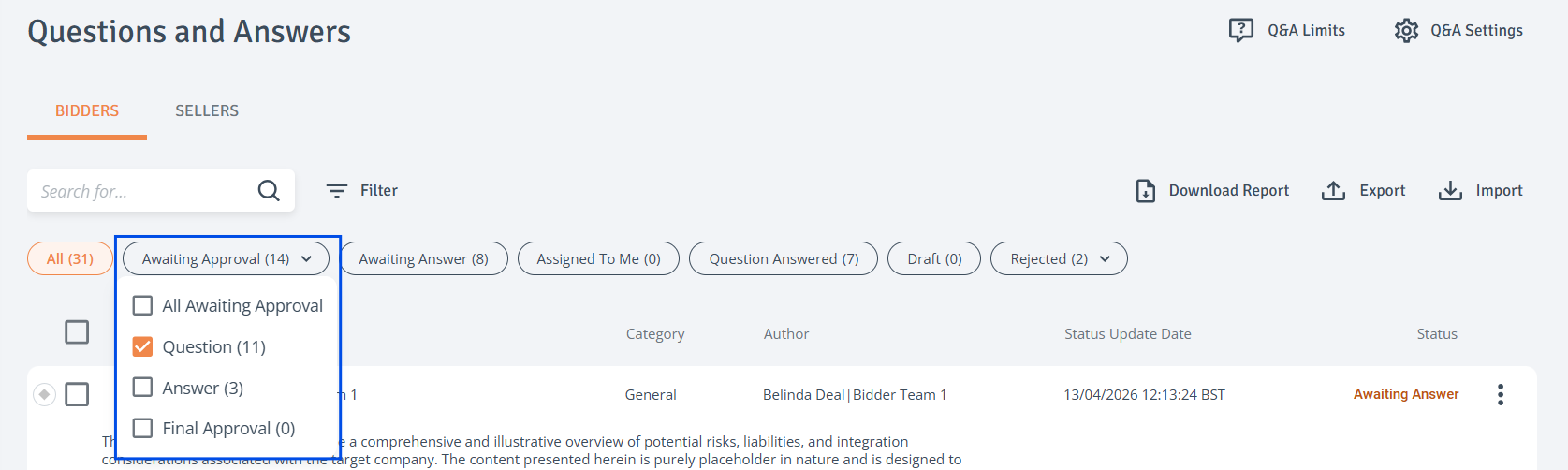
-
Access Moderate Option: In the question three-dot menu, click ‘Moderate’ to open the side drawer.
-
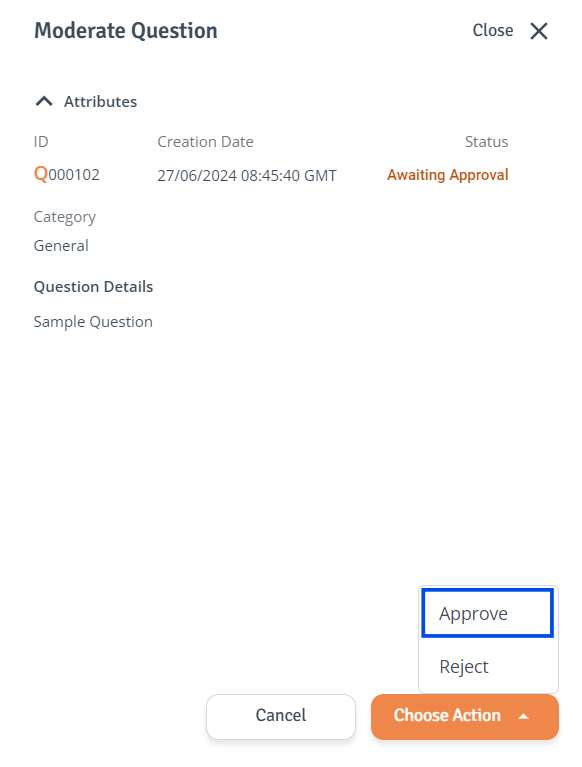
Review and Approve: When ready, click ‘Choose Action’ and select ‘Approve’.
-
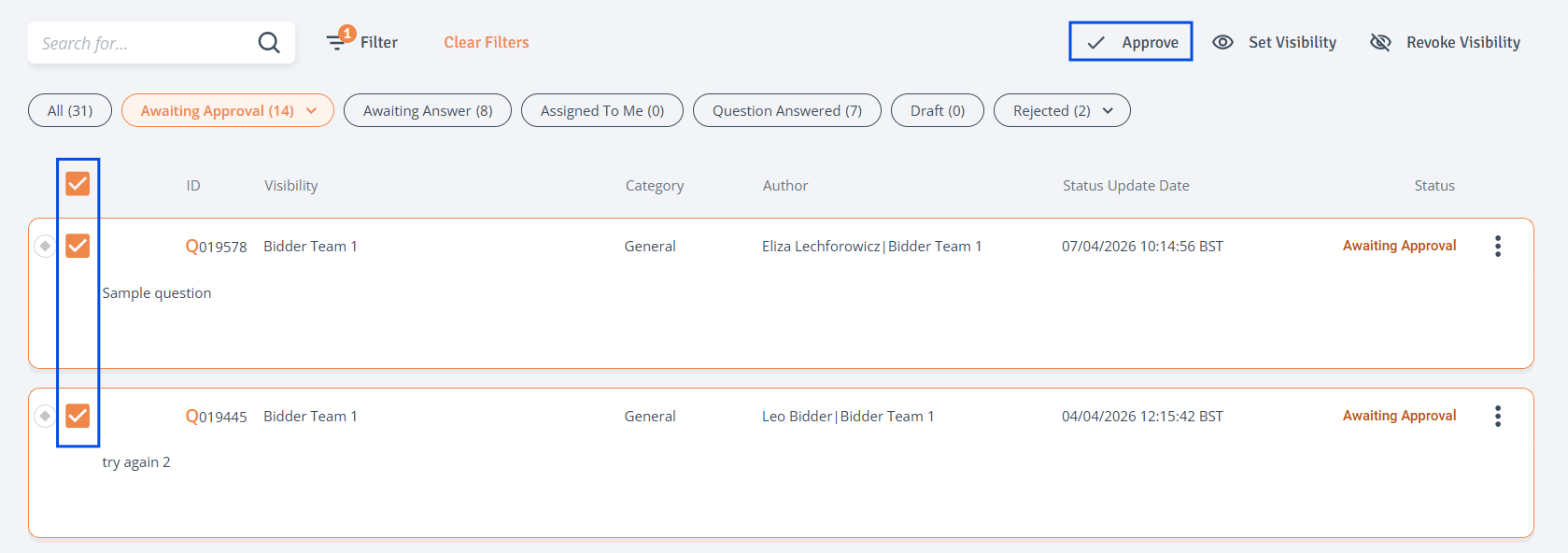
Approve multiple items: Select items using checkboxes and click ‘Approve’ at the top right of the table.
-
Status Update: The question status will change to ‘Awaiting Answer’.
Reject question
To reject a question, follow the steps below:
-
Access Question: Navigate to the Q&A page and use the quick access chips to filter by the ‘Awaiting Approval’ status (both questions and answers awaiting approval will be displayed).
Alternatively, select ‘Filter’ to open the side drawer. Under the ‘Item Status’ dropdown, select the ‘Question Awaiting Approval’ and then click ‘Apply’ to see the list of questions awaiting approval.
-
Access Moderate Option: In the question three-dot menu, click ‘Moderate’ to open the side drawer.
-
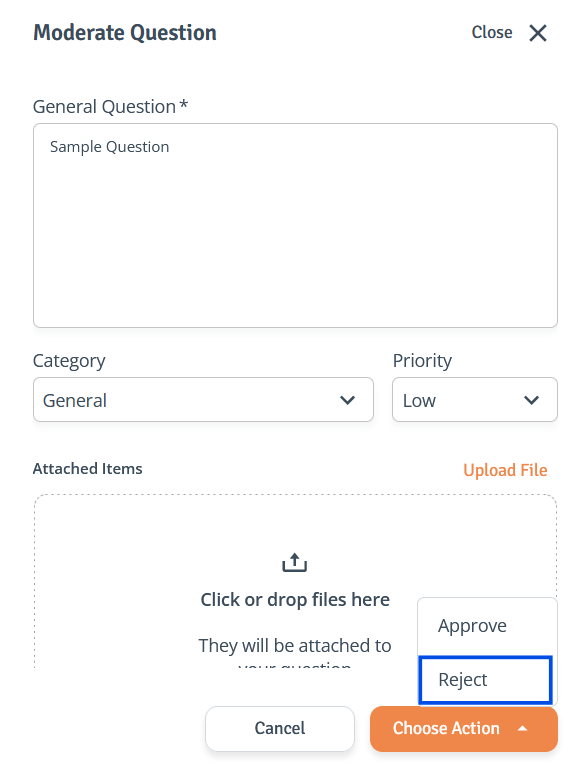
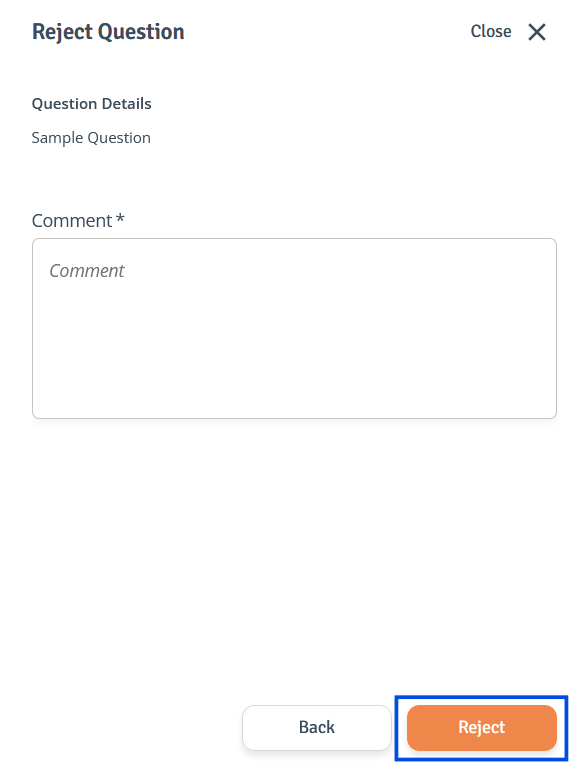
Reject: Click ‘Choose Action’ and select ‘Reject’. In the secondary drawer, add a comment and click ‘Reject’ to confirm.
-
Status Update: The question status will change to ‘Rejected’.
Forward question
When a question is in the 'Awaiting Answer' status, a Q&A moderator can forward it to a specific expert within the same or a different category. If forwarded to a different category, only the answer category will change, while the question category will remain the same.
To forward a question, follow the steps below:
-
Access Question: Navigate to the Q&A page and use the quick access chips to filter by the ‘Awaiting Answer’ status.
Alternatively, select ‘Filter’ to open the side drawer. Under the ‘Item Status’ dropdown, select the ‘Awaiting Answer’ and then click ‘Apply’ to see the list of questions awaiting answer.
-
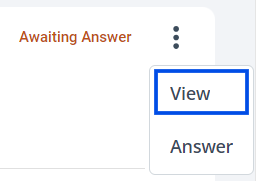
View Question: In the question three-dot menu, click ‘View’ to open the side drawer.
-
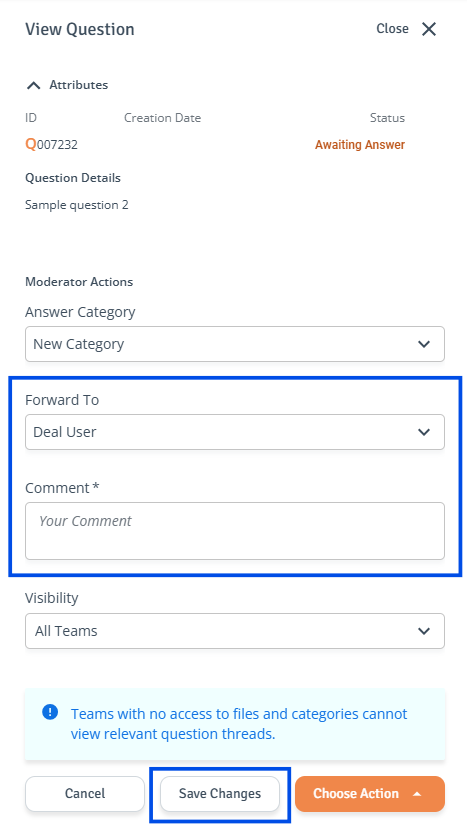
Forward Question: Select category from the ‘Answer Category’ dropdown and then select Experts you want to forward the question to from the ‘Forward To’ dropdown list. The comment must be provided.
You can adjust question visibility for specific teams using the ‘Visibility’ dropdown. -
Save: Once finished click ‘Save Changes’.
Suggest category
When a question is in the ‘Awaiting Answer’ status, a Q&A moderator can suggest a new answer category if one does not already exist.
To suggest a new category, follow the steps below:
-
Access Question: Navigate to the Q&A page and use the quick access chips to filter by the ‘Awaiting Answer’ status.
Alternatively, select ‘Filter’ to open the side drawer. Under the ‘Item Status’ dropdown, select the ‘Awaiting Answer’ and then click ‘Apply’ to see the list of questions awaiting answer.
-
View Question: In the question three-dot menu, click ‘View’ to open the side drawer panel.
-
View question: In the side drawer, click ‘Choose Action’ and select ‘Suggest Category’ to open the secondary drawer.
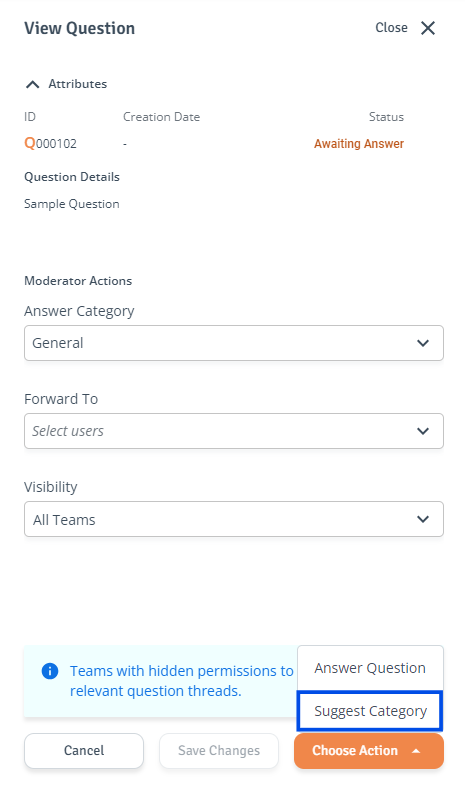
-
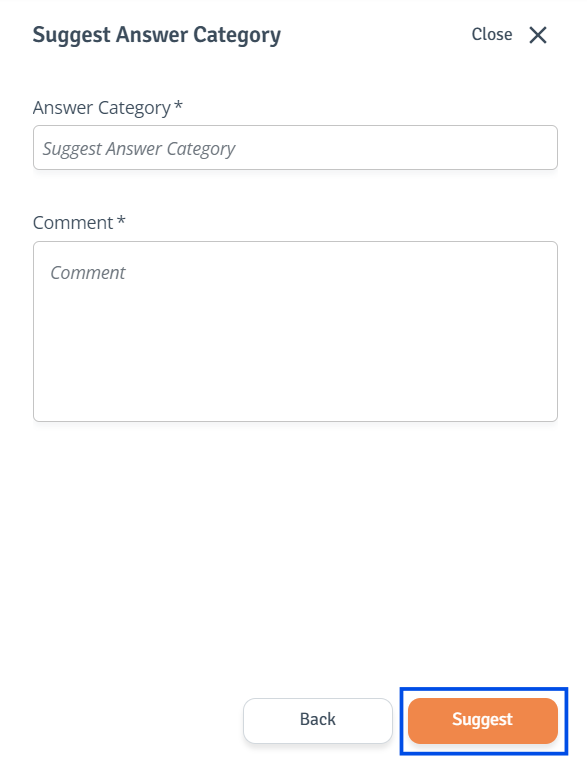
Suggest answer category: Use the ‘Answer Category’ input field to propose a new answer category and add a mandatory comment, then click ‘Suggest’.
Your suggestion with be shared with the Question moderators.