
Users with the ‘Q&A Moderator’ and ‘Q&A Expert’ roles can add answers.
Add answer
To answer a question, follow the steps below:
-
Receive Email Alert: Q&A Experts of the selected category will receive an email indicating a question awaiting answer (applicable if enabled in User settings).
-
Access the Question: Navigate to the Q&A page and use the quick access chips to filter by the ‘Awaiting Answer’ status.
Alternatively, select ‘Filter’ to open the side drawer. Under the ‘Item Status’ dropdown, select ‘Awaiting Answer’ and then click ‘Apply’ to see the list of pending questions.
-
Add Answer: From the question’s three-dot menu, select ‘Answer’ to open the side drawer. Enter the answer in the ‘Answer’ field. Index items can be linked to the question, and external attachments can be added.
-
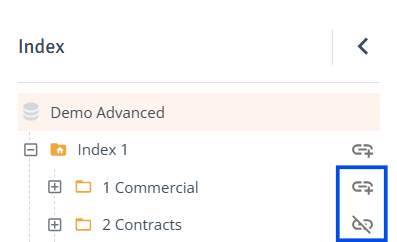
Link Index Item: With the side drawer open, navigate to the Index panel on the Q&A page.
Click the link icon next to the index item to link it to the answer. The icon will change to indicate the item has been linked. To unlink the item, click the icon again.Multiple index items can be linked.
-
Add Attachment: In the side drawer, click ‘Upload File’ to add external attachments to the answer, or drag and drop files from local storage into the side drawer.
If the ‘Upload File’ option is not visible, the team does not have permission to add attachments to Q&A items. This permission can be adjusted in the Q&A attachments settings.
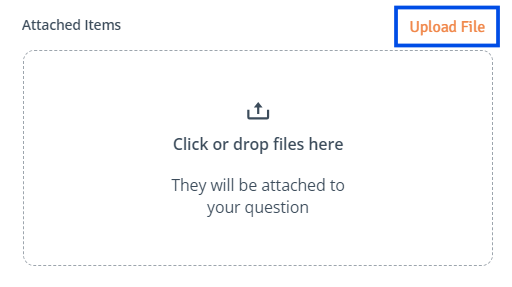
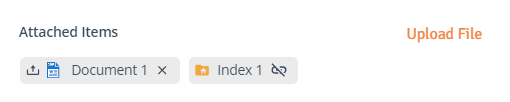
Once added, files will appear under ‘Attached Items’ in the drawer. Attached files can be removed, and index items can be unlinked directly from the question drawer.
-
-
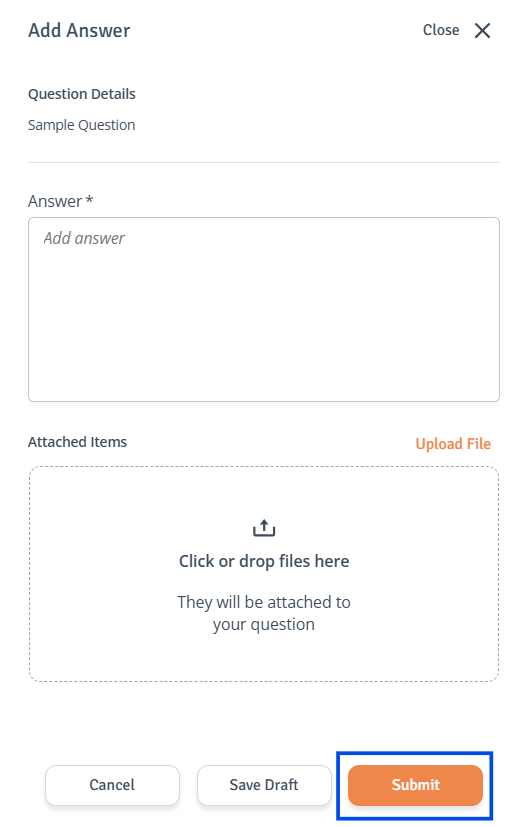
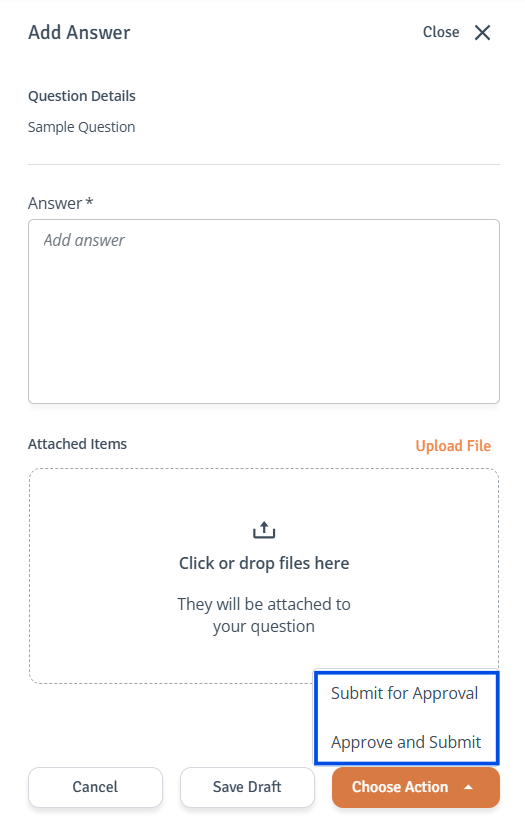
Submit Answer: Once finished, you will see different submission options depending on your Q&A role and Q&A flow set for the Project:
-
Q&A Expert view (Simple & Advanced flow): Select ‘Submit’ to send the answer to the External Q&A team.
-
Q&A Moderator view (Advanced flow):
-
Submit for Approval: The answer is sent to the Internal Answer Moderator for approval, and the status changes to ‘Awaiting Approval’.
-
Approve and Submit: The answer is sent to the External Q&A team, and the status changes to ‘Question Answered’.
-
Any role: Select ‘Save Draft’ to return to the question later.
-
-
Add multiple answers
The Import/Export Feed function allows you to answer multiple questions at once. To add multiple answers, follow the steps below:
-
Export File: In the Q&A page select the 'Export' from the top right side of the table. Download the Excel file provided.
-
Enter Questions: Open or save the Excel file in Microsoft Excel. Fill in the relevant columns with your answers.

-
Save the File: Save the file without changing the file name to ensure proper import.
-
Import File: In the Q&A page select the 'Import' from the top right side of the table. Browse and select the file to upload.
-
Import Status: After a successful import, new answers will be visible in the Q&A page.