
Assign document for review
To assign a document for review, follow the steps below.
Users with the ‘Full Admin’ and ‘Content Manager’ roles can assign the documents for review.
Any user can be assigned to review a document.
‘Document Review Workflow’ feature must be enabled at the project level.
-
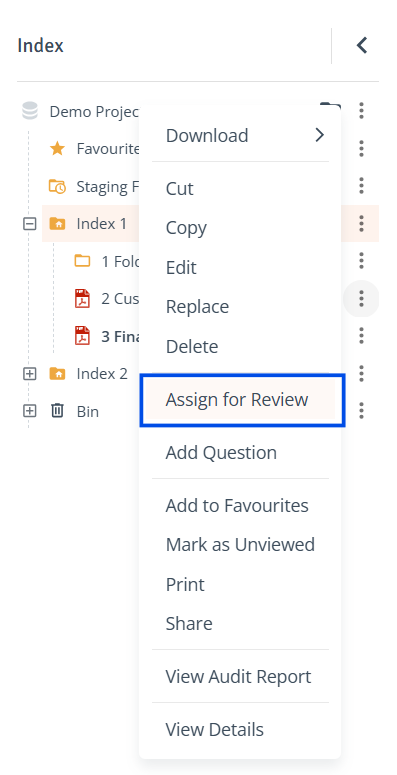
Select Single Document: In the Index tree or the Contents table on the right, click the three-dot menu next to the document and select ‘Assign for Review’ to open the side drawer.
-
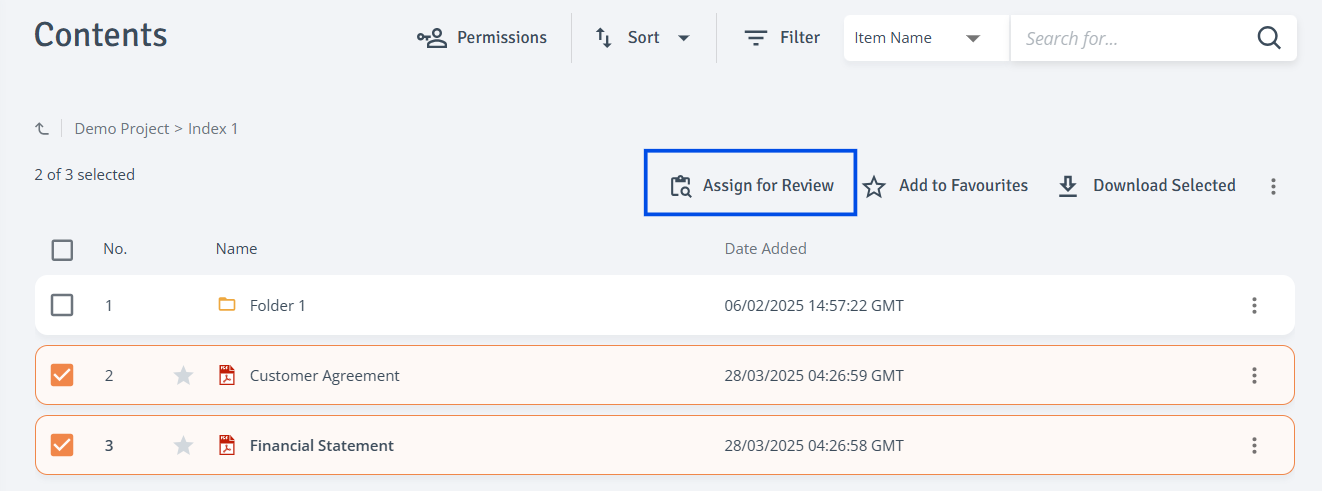
Select Multiple Documents: In the Contents table on the right, use the checkboxes to select documents, then select ‘Assign for Review’ at the top of the Contents table to open the side drawer.
-
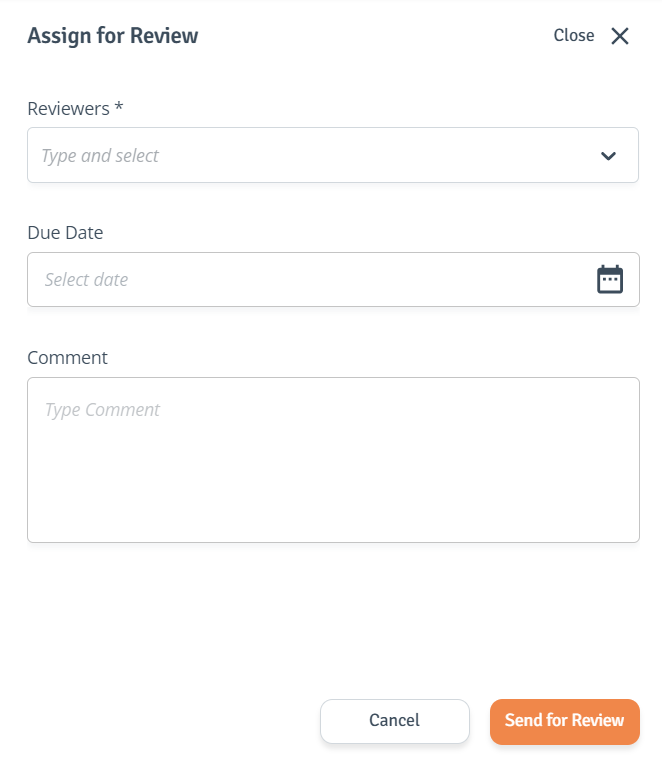
Select Reviewer: The ‘Assign for review’ drawer will open. From the 'Reviewers' dropdown, choose the reviewers for the document. Optionally, set a due date and add a comment to your request. When ready, click 'Send for Review'.
-
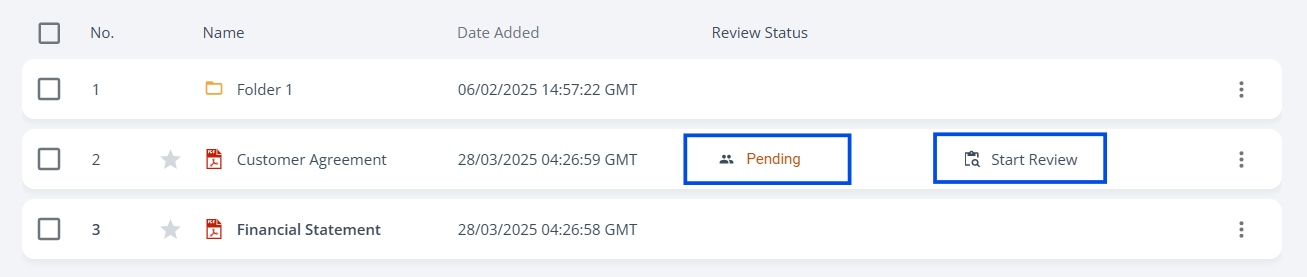
Status Update: The document status will change to ‘Pending’ and the ‘Start Review’ button will now be available. The assigned reviewer will receive an email notification informing them that the document is pending their review.
Filter function can be used to search the content for any items ‘Assigned to Me’ for review.
-
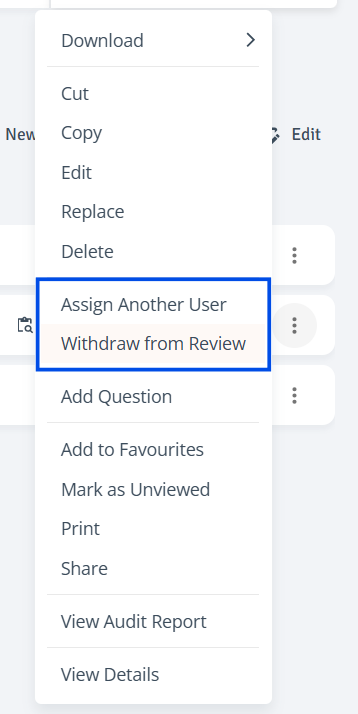
Additional Actions: The user requesting the review can withdraw the document from the review process or assign another reviewer. To access these options, click the three-dot menu on the document.
Review document
To review document, follow the steps below.
-
Start Review: Navigate to the document with a ‘Pending’ review status. Use filter function to search the content for items ‘Assigned to Me’ for review.
Clicking ‘Start Review’ opens the document in a new window.
-
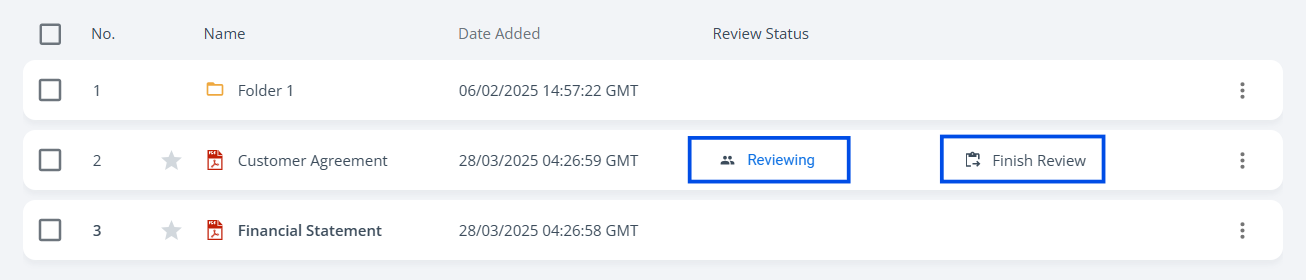
Status Update: The document status changes to ‘Reviewing’ once ‘Start Review’ is selected. When ready, after reviewing the document, return to the Contents page and select ‘Finish Review’.
-
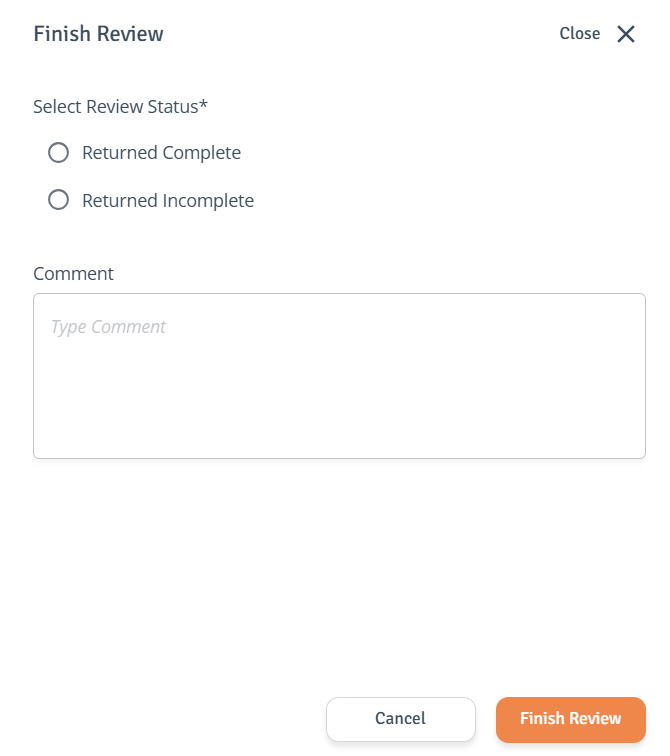
Finish Review: After selecting ‘Finish Review’, the side drawer will open, allowing you to mark the review as ‘Returned Complete’ or ‘Returned Incomplete’. If selecting ‘Returned Incomplete’, a comment is required. Click ‘Finish Review’ to confirm.
-
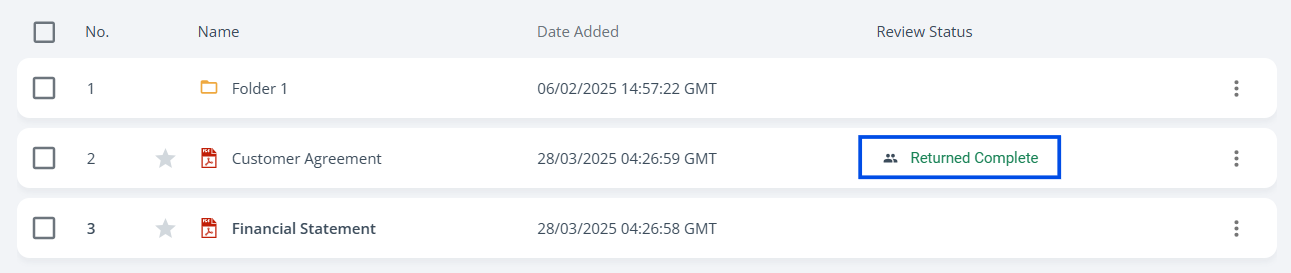
Status Update: The document status will change to either ‘Returned Complete’ or ‘Returned Incomplete’.
-
The review initiator will receive an email notification once the review is completed.
-