Index changes will be visible to users only after the Session is published, applicable if Sessions are enabled at the Project level.
To move a document, follow the steps below.
Users with the ‘Full Admin’ and ‘Content Manager’ roles can move the documents.
-
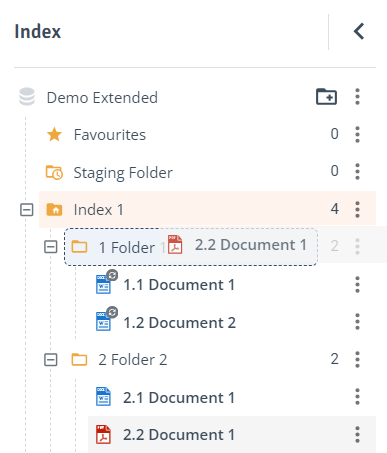
Drag and Drop Option: Drag and drop files into the Index tree or Contents table on the right to move them to a new location.
-
Cut and Paste Option:
-
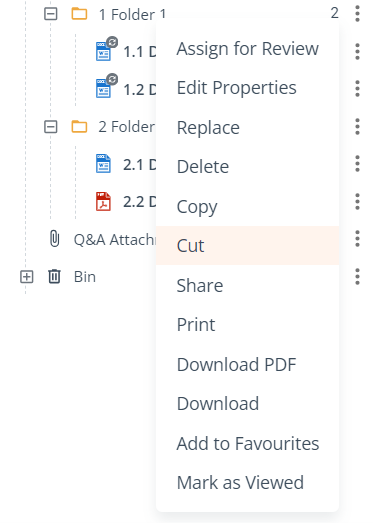
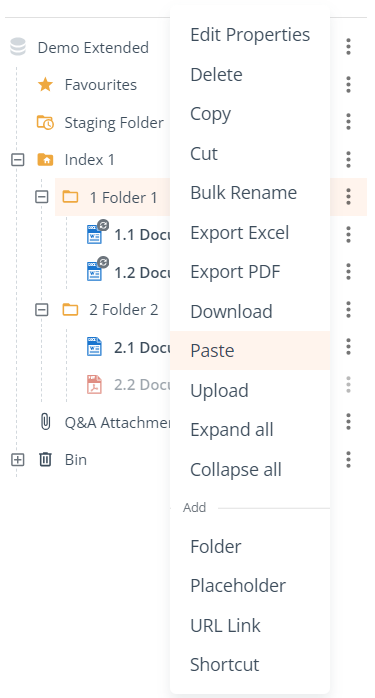
Single files: Click the three-dot menu next to the index item to be moved and select ‘Cut’. Navigate to the destination index or folder and select ‘Paste’ from the three-dot menu.
-
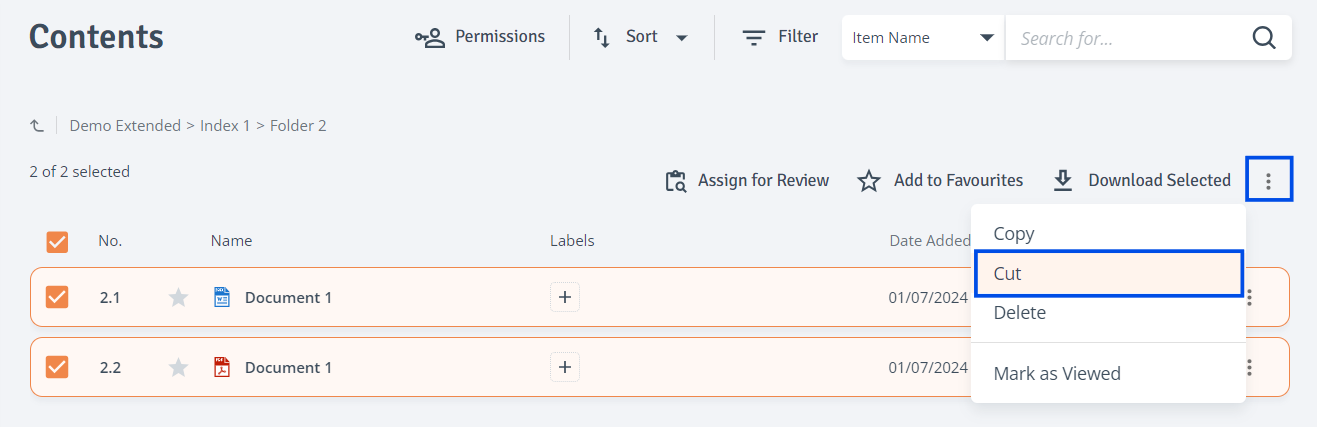
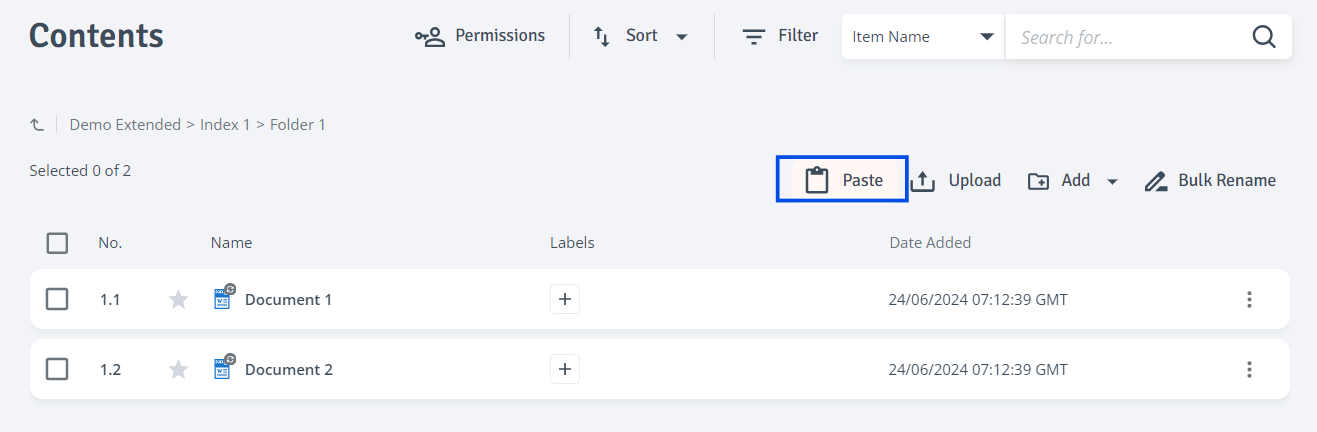
Multiple files: In the Contents table on the right, select items using the checkboxes. Then click the three-dot menu at the top right of the table and choose ‘Cut’. Navigate to the destination index or folder and click ‘Paste’ at the top right of the table to insert the cut items.
-
-
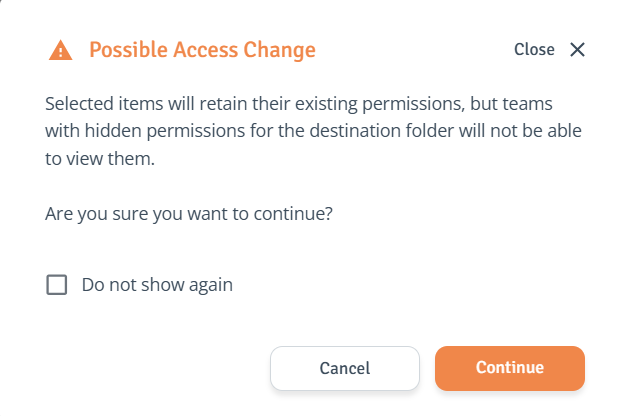
Moved items will retain their permissions. Moved items will retain their permissions. However, if a team has hidden permissions on the destination folder, those items will not be visible to them. Learn more about permissions.