To search or filter documents, follow the steps below.
-
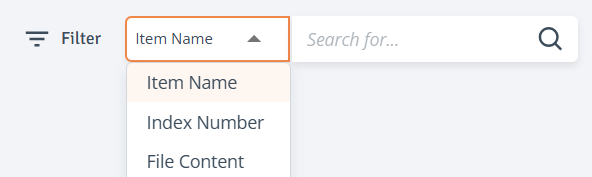
Search Content: The Search function is located at the top right corner of the Contents page. Search by Item Name, Index Number, or Specific File Content.
-
To adjust the search criteria, use the dropdown next to the search box; the default search is by Item Name.
-
Enter keywords in the search box to find specific items. The search requires a minimum of 3 characters.
-
-
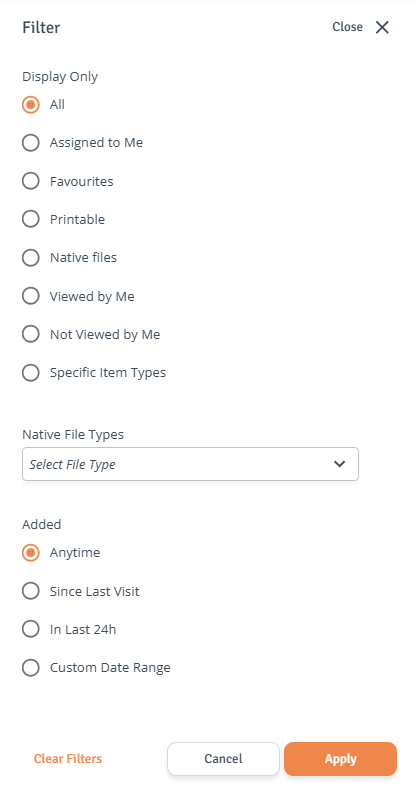
Filter Content: The Filter function is located at the top right corner of the Contents page. Click ‘Filter’ to open the side drawer, select your filters, and then click ‘Apply Filters’.
To further narrow the selection, click on a specific index or folder.
-
Filter Applied: An orange notification icon will appear when a filter is applied.

-
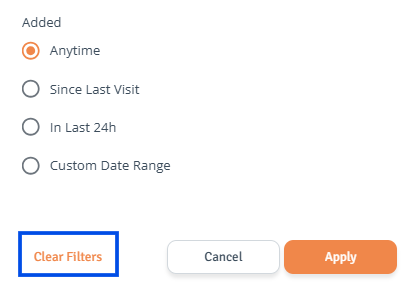
Clear Filters: To reset your selection navigate back to the Filter drawer and select ‘Clear Filters’ then click ‘Apply’.