
Bulk redaction is a folder or index-level feature that allows you to redact multiple documents simultaneously.
Main Deal Team users with 'Full Admin’, ‘Content Manager’, or 'Contributor’ roles can access the Bulk Redaction feature.
Sub Team users with the ‘Content Manager’ role can bulk redact items only if they have 'Manage' permission for those items.
Add markings
Use Add Markings to find information that may need redacting before you apply the redactions.
-
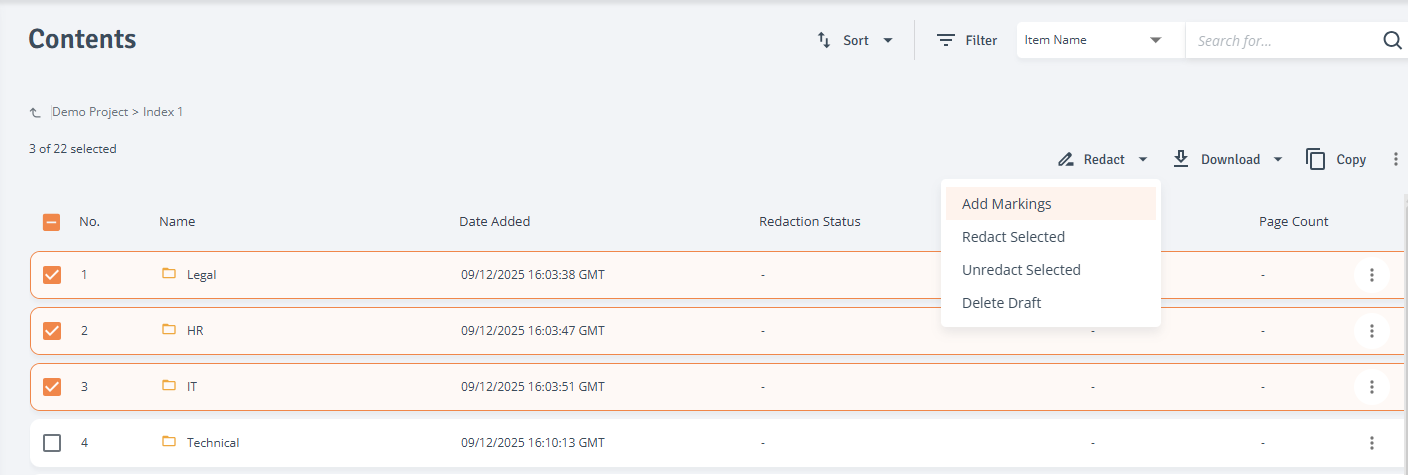
Start from the Contents table: Select one or more files, then select Redact from the toolbar and choose Add Markings.
-
Read the disclaimer: If shown, read and acknowledge the Redaction Disclaimer before continuing.
-
Select files: In Select Files to Mark, review the selected files and clear any files you do not want to include.
-
Add markings: Select predefined patterns and/or enter keywords or phrases, then select Add Markings.
Image: Select Files to Mark drawer
-
Start from the Index Tree: On the Contents page, select the three-dot menu beside a folder, index, staging folder, or Favourites. Select Bulk Redaction > Add Markings.
Finding markings may take several minutes. Files show Searching… until processing is complete.
Drafts and review
Adding markings creates a draft; it does not redact the document. When processing is complete, the status changes to Draft and the Markings column shows the number of proposed markings.
Select the markings count to open Markings Overview, where you can review the results or open the redaction editor. Marking results are saved as drafts and can be reopened later. Users with the appropriate access can review existing markings before continuing the redaction work.
Scanned documents: A warning icon in the Redaction Status column indicates that scanned content has been detected. Redactions may not be applied accurately to scanned content. Review the document carefully before applying or confirming redactions.

Apply redactions
A document must have draft markings before you can apply bulk redactions.
-
From the Index Tree: Select the three-dot menu beside the folder, index, staging folder, or Favourites. Select Bulk Redaction > Apply Redactions. In Select Files to Redact, review the files, amend the selection if needed, then select Redact and confirm.
-
From the Contents table: Select files with draft markings. Select Redaction from the toolbar, choose Redact Selected, then confirm.
Files show Redacting… while processing. When complete, the status changes to Redacted and the redacted version becomes the default document. If any files cannot be included, download the Redaction Exclusion Report from the notification.